
Before we begin, let me simply tell you what an IP is. It may not be the most accurate technical definition of an IP address, but before learning any topic and going deeper, it is always better just to get a simple idea of what you are about study, isn’t it? At least for me, I always want to know what I am about to get myself into.
So, what is an IP? There are thousands of servers and nodes in the internet or any network, it can be as simple as two computers connected together in a Local Area Network (LAN) to run a multiplayer game, it does not matter, in all of them those devices should be able to talk and communicate to each other. In order to do that, they must first find each other right? This is where IP comes in handy.
You have phone number that is associated to your SIM-card (which is nowadays becoming E-SIM) and using that phone number, people can call you and talk to you through your phone. IP does the same thing for a server and a network node that phone number does to your phone. Plain and simple right? For example, if you buy a VPS, they will give and IP address, so in the huge universe of the internet, you will be able to directly connect to your desired destination and not wondering around in the almost endless matrix of addresses and nodes.
Every website on the internet is on a server which is has an IP address. Whether you are troubleshooting DNS issues, checking server infrastructure, performing network diagnostics, or simply learning how domains work, knowing how to find a website’s IP address is a fundamental skill for developers and IT professionals.
But keep in mind, that methods we are about to discuss may not always return the exact IP of that server you want to know about. Sometimes that server is behind a Content Delivery Network (CDN) and you get the IP that belongs to one of the servers of the CDN, not the server you are targeting. There are times where finding the actual IP behind that CDN is really challenging for security concerns. But that is a whole other topic.
Simple explanation on what DNS is: When you type a domain name like example.com into your browser, the Domain Name System (DNS) translates that hostname into an IP address so your device can connect to the correct server.
In this guide, you’ll learn 5 practical methods to find the IP address of any website using:
- Command line tools
- DNS lookup utilities
- Online hostname-to-IP tools
- Browser-based techniques
- Network diagnostic commands
We’ll also explain when each method works best and common issues you may face.
What Is a Website IP Address?
A website IP address is the numerical identifier assigned to the server hosting the website.
There are two primary IP formats:
- IPv4 → Example: 168.1.1
- IPv6 → Example: 2606:4700:4700::1111
Most websites today support IPv4, while many modern infrastructures also use IPv6.
You might wonder, why we have two types or shapes of addresses? Why would world make things more complicated? Well the reason is way simpler than you think. When internet was designed in 1980s, different versions of IP addressing came to life, like IPv1, 2 and 3, but they were never standardized for people two use. Finally the Internet Engineering Task Force (IETF) made IPv4 suitable for public use and for years it was the known standard.
IPv4 consists of four parts separated by dots and each part holds 8 bits of information, that is 32 bit in total. To sum up, we can have roughly 4.3 billion unique IP addresses in this format. In 1980s, with only hundreds of devices in the internet, this was an unreachable milestone, but believe it or not, in the modern days, we have passed that number so we need a new address format that gives us way more possibilities to generate unique addresses. Just to know what big of a number it is, IPv6 version allows us to have 340 undecillion (Two to the 128th power) addresses. Let’s get back to the topic.
The IP address allows devices to locate and communicate with the server behind a domain name.
For example:
| Domain | IP Address |
| example.com | 93.184.216.34 |
Keep in mind that:
- One domain can point to multiple IP addresses
- Multiple websites can share the same IP (You will see this for websites sharing the same VPS, which we say that they are virtually hosted)
- CDNs like Cloudflare may mask the origin server IP (threat actors often try to unmask the real address because using that, they will be able to reach the server directly, therefore CDN strict rules like 3 requests per second rule does not apply there which will make sending thousands or millions of requests easier, so brute forcing and DOS or DDOS attacks will become much easier)
Method 1: Use the Ping Command
The simplest way to find a website IP address is using the ping command. It is installed in all major operating systems because it is simply the most fundamental diagnostic tool for network troubleshooting
This works on:
- Windows
- macOS
- Linux
Windows
Open Command Prompt (CMD) and type:
ping example.com
Example output:
Pinging example.com [93.184.216.34] with 32 bytes of data:
The IP address appears inside the brackets.
macOS and Linux
Open Terminal and run:
ping example.com
Example:
PING example.com (93.184.216.34): 56 data bytes
Advantages
- Fast and easy
- Built into most operating systems
- Useful for quick checks
Limitations
- Some servers block ICMP requests (ICMP – Internet Control Message Protocol, is basically an “are you there?” question which your device use to do a quick check to find out if the server is online or not to then proceed with the connection)
- May return CDN edge IPs instead of origin IPs
- Not always accurate for load-balanced systems
Method 2: Find IP Using NSLookup
nslookup is one of the most reliable DNS lookup tools.
It queries DNS servers directly to retrieve domain records.
Basic NSLookup Command
nslookup example.com
Example output:
Server: dns.google
Address: 8.8.8.8
Non-authoritative answer:
Name: example.com
Address: 93.184.216.34
Why IT Professionals Prefer NSLookup
Unlike ping, nslookup focuses specifically on DNS resolution.
It is especially useful for:
- DNS troubleshooting
- Verifying propagation
- Checking authoritative records
- Diagnosing configuration issues
Checking Specific DNS Servers
You can also query a specific resolver:
nslookup example.com 8.8.8.8
It is very practical in some cases. Some big companies have their own resolvers, if you find them and then ask directly for the IP address of a specific domain, you might find what most people missed. Well, security professionals already know that.
This helps compare DNS results across providers.
Common Use Cases
- Verify domain resolution
- Identify DNS inconsistencies
- Troubleshoot website outages
- Validate network configuration
Method 3: Use the Dig Command
dig (Domain Information Groper) is a powerful DNS diagnostic tool commonly used by Linux administrators and network engineers.
It provides more detailed DNS information than nslookup.
Basic Dig Command
dig example.com
Look for the ANSWER SECTION:
;; ANSWER SECTION:
example.com. 86400 IN A 93.184.216.34
Get Short Output Only
To display only the IP address:
dig +short example.com
Output:
93.184.216.34
Advantages of Dig
- Detailed DNS diagnostics
- Supports advanced queries
- Preferred by Linux professionals (it seems like ping, easy and quick. That’s why I like it)
- Excellent for automation scripts
When Dig Is Most Useful
dig is ideal when troubleshooting:
- DNS propagation delays
- Incorrect A records
- DNSSEC issues
- Mail server configuration
- IPv6 records
Most of the times when we want to write an automation script, a crawler or a web reconnaissance tools, we want to know why DNS records and domain has and dig is great for that.
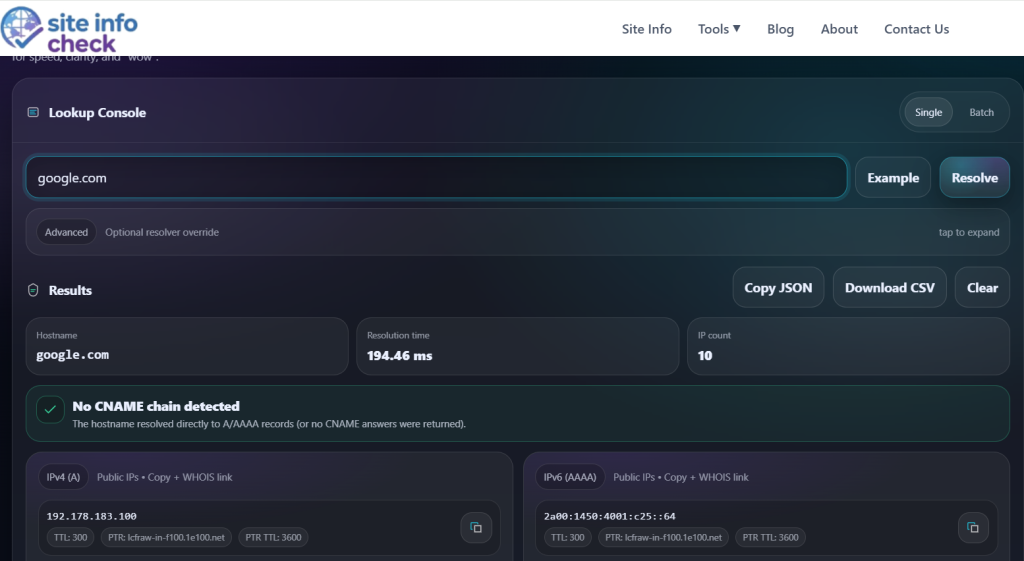
Method 4: Use an Online Hostname to IP Tool
If you prefer a graphical interface, online lookup tools provide the fastest method.
These tools automatically perform DNS lookups and display:
- IPv4 addresses
- IPv6 addresses
- DNS information
- Hostname resolution
Our Hostname To IP Tool makes the process instant and beginner-friendly.
Benefits of Online Lookup Tools
- No command line required
- Fast results
- Mobile-friendly
- Easy for non-technical users
- Useful for quick diagnostics
Best Situations for Online Tools
Online hostname lookup tools are useful when:
- You need fast results
- You are using a restricted environment
- Terminal access is unavailable
- You want simplified DNS information
Method 5: Find Website IP Address Using Browser Developer Tools
Modern browsers allow you to inspect network requests and identify server IP addresses. Truly, I have not seen many experts use this method, but why not explore all different ways we can reach our goal, right?
Using Google Chrome
- Open the website
- Press F12 to open Developer Tools
- Go to the Network tab
- Reload the page
- Click on a request
- Check the remote address or server information
This method can reveal:
- CDN endpoints
- API server IPs
- Third-party infrastructure
- Request routing information
Advantages
- Useful for frontend debugging
- Reveals network behavior
- Helpful for developers
Limitations
- Can be more technical
- Some IPs may belong to CDNs or proxies
- Results vary by browser
Why Websites May Have Multiple IP Addresses
Many users expect a domain to map to a single IP address, but modern websites often use multiple servers.
Common reasons include:
Load Balancing
Traffic is distributed across multiple servers for performance and reliability. To get an idea what load balancing is, just think about this example: instead of having only one highway to a city, we create multiple ones so the traffic is shared between them so people experience a smooth ride. A server has limited capabilities and does not matter how much resource it has. At the end of the day, it is limited. We help it by setting up other servers alongside of that so it wouldn’t do all the job by itself, therefore the user experiences a faster connection.
Content Delivery Networks (CDNs)
Services like Cloudflare or Akamai route users through geographically distributed edge servers. They sit between user and the website.
Redundancy and Failover
Multiple IPs improve uptime during outages. One down, the other works.
Geographic Routing
DNS may return different IPs depending on user location.
This means your lookup results can vary between devices, DNS providers, and regions.
IPv4 vs IPv6 in Website Lookups
When performing DNS lookups, you may encounter both IPv4 and IPv6 addresses.
IPv4
Example:
93.184.216.34
- Most widely used
- Easier to recognize
- Still dominant globally
IPv6
Example:
2606:2800:220:1:248:1893:25c8:1946
- Larger address space
- Better scalability
- Increasing adoption
Some domains only resolve to IPv4, while others support both. Even in some cases, one IP is protected, and the other one is not!
Common Issues When Finding a Website IP
CDN Protection
Services like Cloudflare hide the origin server IP.
You may only see the CDN edge IP instead of the real hosting server.
DNS Caching
Local systems and ISPs cache DNS results for faster communication and lookups.
This can temporarily display outdated IP addresses.
Geo-Based DNS
Some providers return different IPs depending on geographic location.
Security Restrictions
Some servers block ping or ICMP traffic.
In these cases, use nslookup or dig instead.
The most common reason that some servers block ICMP packets is, they don’t want threat actors to map their network. ICMP makes network mapping and finding live servers much easier. It is like a “knock” on the door. When ICMP is blocked, server stays silent, so the attacker either spends much more time or moves on and may not know that in fact the server was live but just ICMP is blocked.
How WHOIS IP Lookup Helps
Once you discover a website IP address, the next step is often identifying who owns or operates the server.
This is where WHOIS IP lookup tools become valuable.
They can help identify:
- Hosting providers
- ASN information
- IP ownership
- Regional allocation data
- Network operators
Understanding DNS and IP Resolution
DNS is the system responsible for converting hostnames into IP addresses.
Without DNS, users would need to memorize numerical IP addresses instead of readable domain names.
If you want a deeper understanding of how DNS works, caching behavior, and DNS records, read our detailed DNS guide.
Best Method for Developers and IT Professionals
Here’s a quick comparison:
| Method | Best For | Difficulty |
| Ping | Quick checks | Easy |
| NSLookup | DNS troubleshooting | Easy |
| Dig | Advanced diagnostics | Medium |
| Online Tools | Fast lookups | Very Easy |
| Browser DevTools | Frontend debugging | Medium |
For professional diagnostics:
- Use nslookup for standard DNS checks
- Use dig for advanced troubleshooting
- Use online tools for speed and convenience
Final Thoughts
Finding the IP address of a website is a core networking skill for developers, IT teams, and cybersecurity professionals.
Whether you use command line utilities like ping, nslookup, and dig, or prefer browser-based and online lookup tools, understanding hostname-to-IP resolution helps with:
- DNS troubleshooting
- Network diagnostics
- Website analysis
- Infrastructure auditing
- Security investigations
Modern hosting environments can complicate IP lookups due to CDNs, load balancing, and cloud infrastructure, but the methods in this guide will work in most situations. Not always you get the most accurate data just because how internet works and it becomes more complicated as we go forward.
Frequently Asked Questions
Can I find the real server IP behind Cloudflare?
Usually not directly. Cloudflare masks the origin IP using reverse proxy infrastructure.
There are indirect paths, like looking up the favicon in search engines such as Shodan or the website history in Censys.
Is ping always accurate for finding a website IP?
Not always. Some servers block ping requests or return CDN IPs.
Which tool is best for DNS troubleshooting?
dig and nslookup are the most reliable tools for DNS diagnostics because of their easy to use nature.
Can one website have multiple IP addresses?
Yes. Many websites use multiple servers for redundancy, performance, and global routing.
Do all websites support IPv6?
No. Some websites only use IPv4, while others support both IPv4 and IPv6.
Convert any hostname to IP instantly with our free tool.
Leave a Reply