
When a website loads in your browser, a complex network of DNS infrastructure works behind the scenes to direct your request to the correct server. One of the most important pieces of this process is the domain’s nameservers.
Nameservers basically tells people were they can find the IP address associated to the domain that was called. When you type down amazon.com in your browser, your system does not understand that, therefore it needs to translate it to an IP address so it can make connections. Nameservers are those places your PC asks that domain’s IP from.
Whether you’re a web developer, IT administrator, domain manager, or website owner, knowing how to find nameservers for a domain can help you troubleshoot DNS issues, verify hosting configurations, investigate websites, and ensure proper domain delegation.
In this blog post, we’ll explain what nameservers are, why they matter, how to find them for any domain, and how to use nameserver information to diagnose common DNS problems.
What Are Nameservers?
Nameservers are specialized DNS servers responsible for storing and providing DNS records for a domain. Their main job is to translate a domain name into an IP address so users can easily type in domains to be translated to IP so devices can talk to each other. B
When someone visits:
example.com
their device first needs to determine:
- Which DNS server is authoritative for the domain
- Where the website is hosted
- Which IP address should be used
Nameservers provide this information through DNS records.
A typical domain might use nameservers such as:
ns1.cloudflare.com
ns2.cloudflare.com
or:
ns1.bluehost.com
ns2.bluehost.com
These servers act as the authoritative source for DNS data related to the domain.
Why Nameservers Matter
Many website and DNS issues originate from incorrect nameserver configurations. Misconfigured nameserver can cause users and services not find your website.
Nameservers determine:
- Which DNS provider manages the domain
- Where DNS records are hosted
- How website traffic is routed
- Email delivery configurations
- Subdomain resolution
- SSL certificate validation processes
If nameservers are misconfigured, visitors may experience:
- Website downtime
- Email failures
- DNS resolution errors
- SSL validation problems
- Propagation inconsistencies
For this reason, checking nameservers is often one of the first troubleshooting steps when diagnosing domain-related issues.
Understanding DNS Delegation
In simple terms, DNS delegation is when a parent domain passes responsibility for a subdomain to another set of name servers. Think of it like an office phone directory. They do have a main phone number, but if you want someone special in that office, they will forward your call to them. Companies often use DNS delegation when they want another department or server manage their subdomain.
To understand nameservers, you need to understand DNS delegation.
The DNS hierarchy works roughly like this:
- Root DNS servers
- Top-level domain (TLD) servers (.com, .net, .org)
- Authoritative nameservers
- DNS records (A, AAAA, MX, TXT, CNAME)
When someone queries a domain:
- The resolver asks a root server.
- The root server points to the TLD server.
- The TLD server provides the domain’s nameservers.
- The nameservers return the requested DNS records.
This process is called DNS delegation.
If delegation is incorrect, the domain may become unreachable even if all DNS records are configured properly.
How to Find Nameservers for Any Domain
There are several methods available.
Method 1: Use a Domain Lookup Tool
The easiest approach is using a domain lookup service.
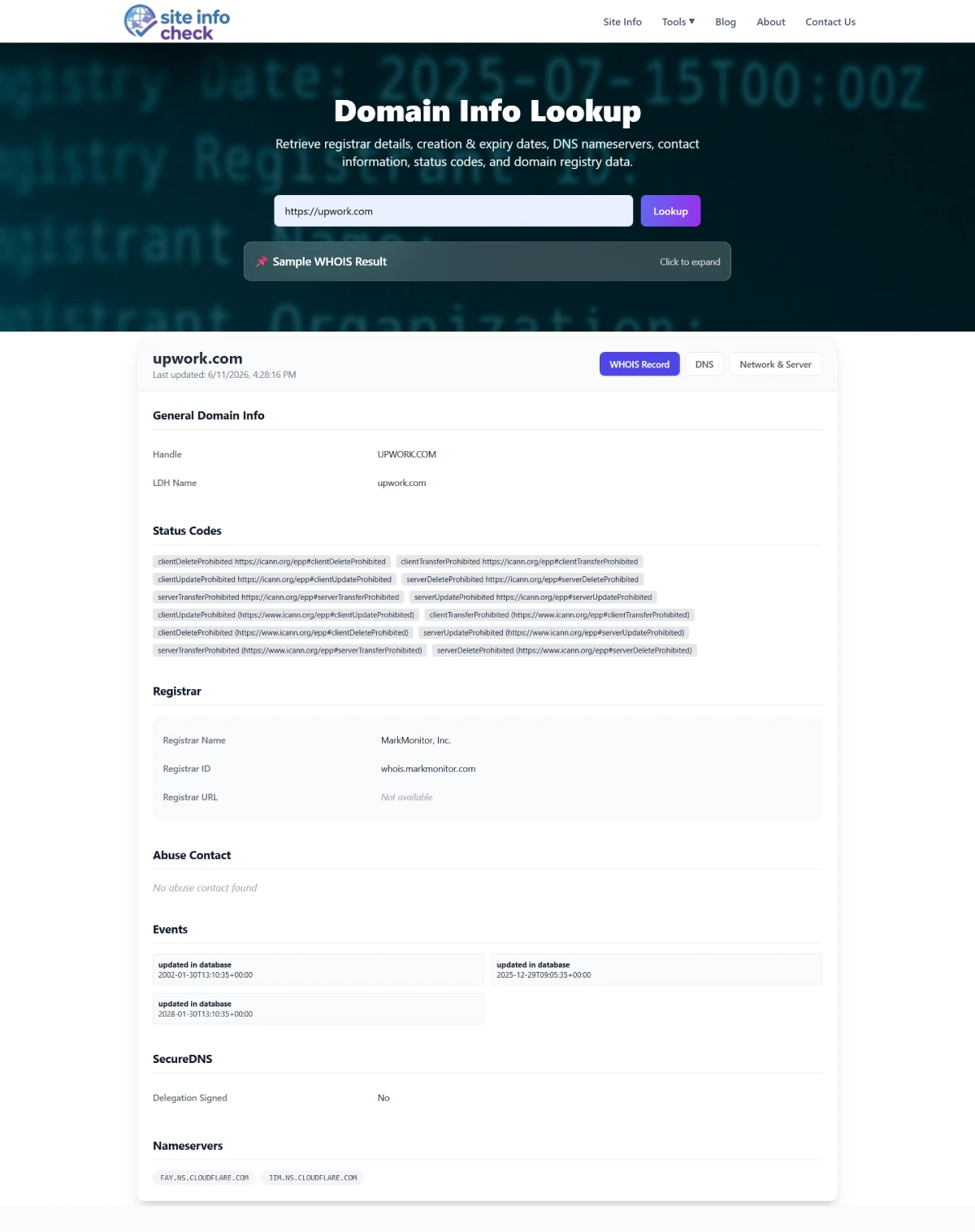
Our Domain Info Tool instantly displays:
- Nameservers
- Registrar information
- Registration dates
- Domain status
- WHOIS details (where available)
Simply enter the domain name and review the DNS delegation information.
This is usually the fastest method for domain managers and support teams.
Method 2: Use the NSLOOKUP Command
Windows, macOS, and Linux systems include the nslookup utility. Literally in all operating systems, this tool is installed by default. It’s not hard to install, just in case.
Run:
nslookup -type=ns example.com
Example output:
example.com nameserver = ns1.exampledns.com
example.com nameserver = ns2.exampledns.com
This command directly queries DNS infrastructure for NS records.
Advantages:
- Built into most operating systems
- Fast
- Useful for troubleshooting
- Can be bound into an automation framework
Method 3: Use DIG
For advanced DNS diagnostics, many professionals prefer DIG.
Run:
dig NS example.com
Sample response:
;; ANSWER SECTION:
example.com. 86400 IN NS ns1.exampledns.com.
example.com. 86400 IN NS ns2.exampledns.com.
DIG provides additional technical details including:
- TTL values
- Query timing
- Authority section
- Additional records
This makes it particularly useful for DNS investigations. Its lightweight nature makes it more preferable choice over nslookup, but at the end, they both have their capabilities.
Method 4: Check WHOIS Information
In some cases, WHOIS data may include nameserver information. This method is not widely used because often it takes more time than previous methods. And most of time it will not show full information due to regulations.
A WHOIS lookup often displays:
- Registrar
- Registration dates
- Domain status
- Nameservers
However, modern privacy regulations mean WHOIS records may not always expose complete information.
What Is an NS Record?
An NS (Nameserver) record tells the internet which DNS servers are authoritative for a domain. When you buy a domain, these servers are given to you. Usually they are two, so if one fails, the other works.
Example:
example.com. IN NS ns1.provider.com.
example.com. IN NS ns2.provider.com.
These records are stored at the TLD level and are critical to DNS resolution.
Without valid NS records, a domain cannot properly resolve.
How to Identify a Domain’s DNS Provider
Nameservers often reveal the DNS provider being used. Their domain name simply tells us.
Examples include:
| Nameserver Pattern | DNS Provider |
| *.cloudflare.com | Cloudflare |
| .awsdns- | Amazon Route 53 |
| *.azure-dns.com | Microsoft Azure DNS |
| *.googledomains.com | Google Domains |
| *.digitaloceanspaces.com | DigitalOcean |
By examining nameservers, you can quickly determine where DNS management occurs.
This is especially helpful when auditing websites or inheriting existing infrastructure.
Common Reasons to Check Nameservers
Website Migration
When moving a website to a new host, nameservers may need updating.
Verifying the current nameservers helps ensure traffic reaches the intended infrastructure.
There is another very important concern, developing team might use the old nameservers for developing purposes and staging environments. Misconfigured nameservers can cause unauthorized access to those environments, in other words, you redirect users to where they didn’t want to by not setting new nameserver. Of course this is just a scenario but a good example on how a simple nameserver configuration can cause critical problems.
DNS Troubleshooting
If DNS changes aren’t taking effect, the wrong nameservers may be configured.
A quick nameserver lookup often identifies the issue immediately.
Email Delivery Problems
MX records only work if they’re configured on the active DNS provider.
Many email issues occur because administrators edit records on the wrong DNS platform.
Checking nameservers confirms where DNS changes should be made.
Domain Ownership Audits
Organizations managing multiple domains frequently verify:
- DNS providers
- Delegation consistency
- Third-party dependencies
- Security configurations
Nameserver lookups simplify these audits.
Security Investigations
Security teams often inspect nameservers to:
- Identify hosting infrastructure
- Detect abandoned DNS services
- Investigate suspicious domains
- Review third-party dependencies
Nameserver data provides valuable intelligence during reconnaissance and asset management. One very important aspect of finding companies nameservers, is when the company has many assets and they have their own nameservers, their dedicated nameservers that they have bought for themselves.
Why is it critical? Imagine an attacker has 200 domains from that company, if he wants to check those domains availability through public nameservers, he might only get 25 live domains. But assume attacker finds a dedicated nameserver that the company has bought. Attacker will check those 200 domains against that server to find out what domain does that server know about. He might get 2 live domains, but those 2 are the ones that everyone have missed and probably company did not secure them well, because they said no one can find them. Just like that, attacker would have 2 untouched corners to start finding vulnerabilities in.
Nameserver Changes and DNS Propagation
Changing nameservers is different from modifying standard DNS records. DNS propagation is the time that it takes for changes to your DNS records to spread across all different DNS servers on the internet, so everyone knows what has changed. It’s like when you change your phone number, it takes some time until all your contact list know about it.
When nameservers change:
- Registrar updates delegation records.
- TLD servers receive new NS information.
- Recursive resolvers refresh cached data.
- Global DNS propagation occurs.
This process may take anywhere from a few minutes to 48 hours.
During propagation, users in different locations may receive different DNS responses.
How to Verify a Nameserver Change
After updating nameservers:
1. Check NS Records
Use:
dig NS example.com
or:
nslookup -type=ns example.com
Verify the new nameservers appear.
2. Query Specific Nameservers
You can query an authoritative server directly (remember how I told you that finding a company’s dedicated nameserver can be critical in recon for an attacker? This is how he can ask for a domain IP from that specific nameserver):
dig @ns1.exampledns.com example.com
This confirms the nameserver is serving the expected DNS records.
3. Monitor Global Propagation
Use DNS propagation tools to confirm delegation updates are visible worldwide.
This is particularly important after:
- Hosting migrations
- DNS provider changes
- Domain transfers
Common Nameserver Problems
Missing Nameservers
A domain without valid nameservers may become unreachable and also can put the IP address in blockage (IP blacklisting).
Symptoms include:
- NXDOMAIN errors
- DNS lookup failures
- Website downtime
Incorrect Nameservers
Pointing a domain to the wrong DNS provider prevents correct DNS resolution.
This frequently occurs after migrations.
Mismatched DNS Zones
Sometimes nameservers are updated but DNS records aren’t recreated on the new provider. DNS zone files can cause trouble for companies. Like a company tried its best to hide a staging subdomain, but using Zone Transfer, attacker can find it easily if zone is not protected and that ability is not disabled.
Result:
- Website unavailable
- Email interruptions
- SSL validation failures
Partial Propagation
Some regions may see old DNS data while others see new information.
This temporary state can cause inconsistent behavior.
Best Practices for Nameserver Management
Follow these recommendations:
- Use at least two authoritative nameservers.
- Maintain redundancy across infrastructure.
- Document DNS provider ownership.
- Verify delegation after registrar changes.
- Audit nameservers periodically.
- Monitor DNS propagation after updates.
- Remove obsolete DNS providers from active configurations.
Proper nameserver management significantly reduces DNS-related outages.
Related DNS Tools
When investigating domains, nameservers are only one part of the puzzle.
You may also find these tools useful:
- Domain Info Tool — View registrar, nameservers, registration dates, and domain details.
- Hostname To IP Tool — Resolve hostnames to IP addresses and verify server mappings.
- DNS Lookup Tools — Inspect A, AAAA, MX, TXT, CNAME, and NS records.
Combining these tools provides a complete picture of a domain’s DNS infrastructure.
Final Thoughts
Nameservers are the foundation of DNS delegation and play a critical role in how domains function on the internet. Whether you’re troubleshooting website outages, verifying DNS changes, managing domain portfolios, or conducting security assessments, understanding how to find and analyze nameservers is an essential skill.
A quick nameserver lookup can often reveal the DNS provider, identify configuration mistakes, and accelerate problem resolution.
Need to verify a domain’s nameservers? Look up nameservers instantly with Domain Info and get complete DNS delegation details in seconds.
Leave a Reply